What Happens After Uploading a Document?
Follow an uploaded document from Processing to Needs Review, then open its evidence without confusing availability with approval.
- ForShipment users who upload documents or check whether documents are ready for review
- Task timeAbout 3 min
- Video2:11
- Last checked2026-10-23
Overview
Adding a document, reading it and approving its values are separate stages. Follow a fictional Bill of Lading through the recorded Processing and Needs Review states, then inspect the same version in the Viewer.
What you'll learn
- Check the document type before Upload
- Distinguish a saved file from completed reading
- Recognize Needs Review and the shipment's review summaries
- Open the same document version in the Viewer
- Distinguish Available evidence from approved values
Before you begin
- A shipment with an eligible document type selected in Setup Enter Shipment Setup
- Know how to select and upload a shipping document Upload Shipping Documents
- Permission to upload and preview shipment documents; field access is separate
Step-by-step guide
Choose a document to upload
Open the shipment and select Add Documents. In Add documents, select Choose files or drop your file into the upload area. The recorded limits are 10 MB per file, 50 MB per batch and 20 files. Accepted formats are PDF, PNG, JPG, JPEG, WEBP, TIF and TIFF. Choose folder selects files without retaining the folder structure. Available document types come from Shipment Setup; you need permission to upload to this shipment.
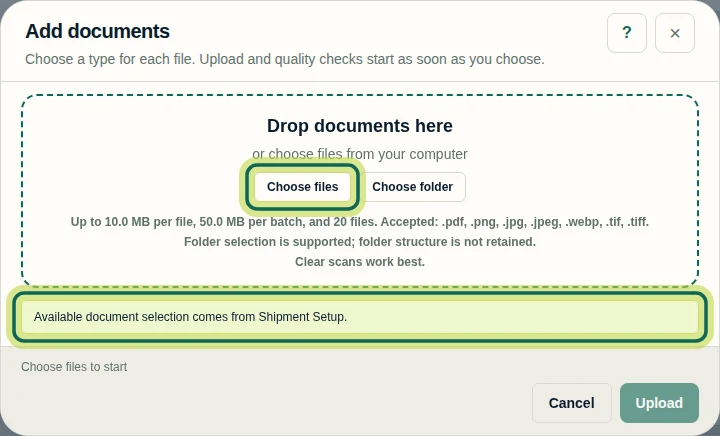
Step 1 Check the document type before replacing anything
For each chosen file, select the matching Document type. In this example, the Bill of Lading file was mistakenly assigned Commercial Invoice. Because that type already exists, the dialog offers Add as replacement or Skip this file. If the type is wrong, correct Document type before uploading. Use replacement only when you intend to replace the existing document with revised content.
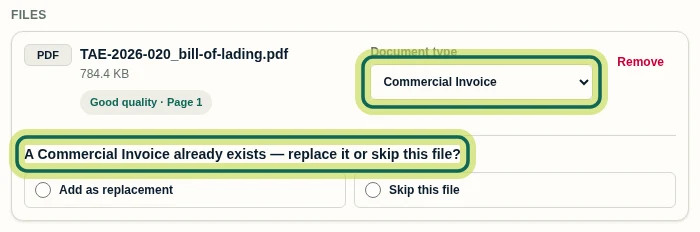
Step 2 Upload the file with the correct type
For this file, change Document type to Bill of Lading. The replacement prompt disappears and the footer shows Ready to upload. Check the selection, then select Upload. Good quality · Page 1 describes the scan check; it does not establish that the document's values are correct. Choosing a file alone does not finish adding it to the shipment.
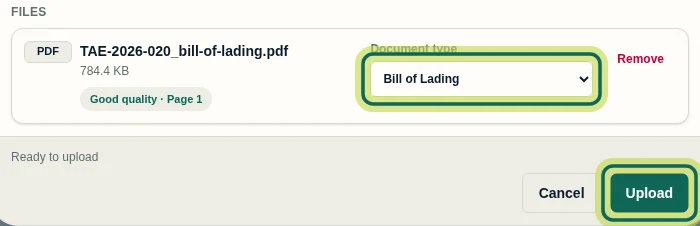
Step 3 Check the document's processing status
On Overview, find the uploaded document and check its Version and Status. Here, Bill of Lading is V1 and Processing. The saved file and completed reading are separate outcomes, and processing time varies. Reading eligible documents uses Company credits based on verified pages. If the status is Waiting for credits, contact your Company Admin. Documents marked Stored only, not read can be viewed and downloaded without extracted fields.
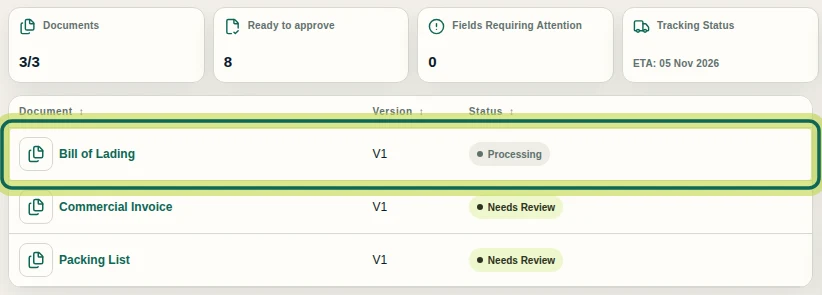
Step 4 Recognize when review can begin
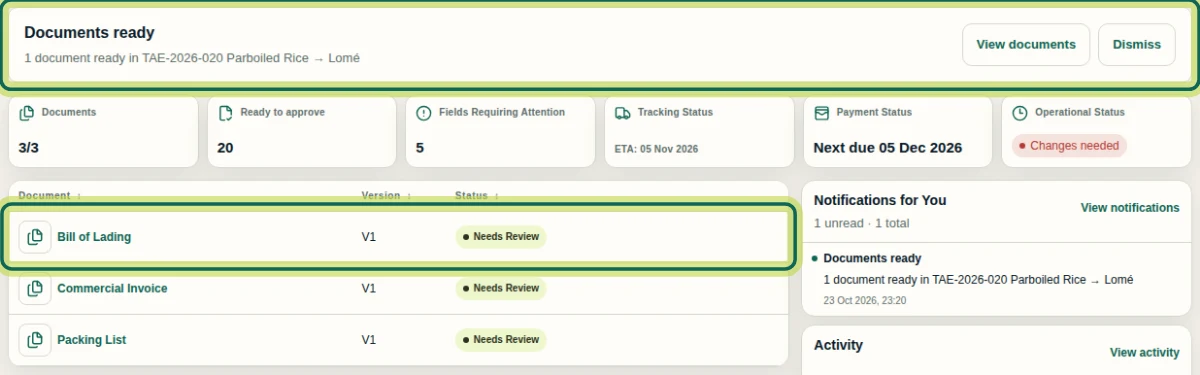
Check the same document version again on Overview. In this recording, Bill of Lading V1 later shows Needs Review, and a Documents ready banner and in-app notification appear. This is a recorded outcome, not a promised processing time or notification for every upload. Ready to approve and Fields Requiring Attention summarize shipment review work. Uploading does not approve extracted values; review and approval happen separately.
Step 5 Open the exact version in the Viewer
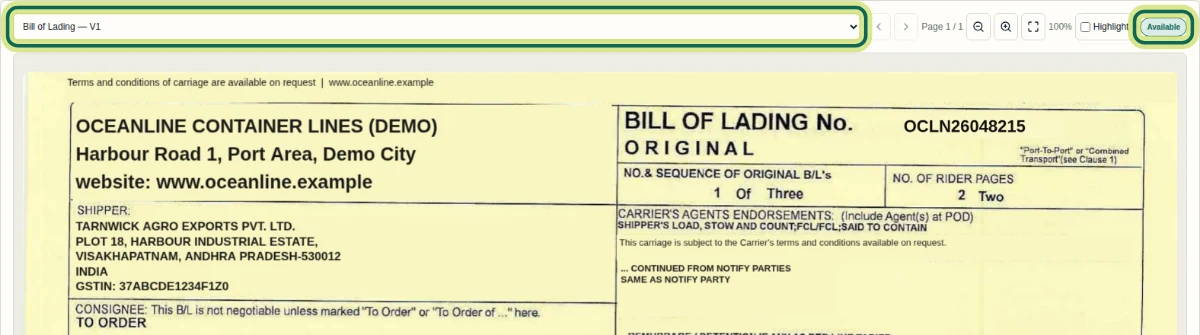
Select Viewer in the shipment menu, then choose Bill of Lading — V1 from the list at the top. Inspect the displayed source document. Available is the Viewer's evidence state; it does not mean the values are approved or correct. Seeing a file and seeing its fields require separate permissions. If Field data is not included in your shipment access. appears, ask your Shipment admin about field access. Continue with Use the Evidence Viewer, then Review Extracted Document Fields for the review and approval steps.
Step 6
Expected result
You can check the uploaded document's version and status, recognize when review can begin, and open its evidence without treating it as approved.
Next tutorial
Was this helpful?
If something did not work as described, tell us and we will help.