How to Download and Remove Shipment Documents
Download a selected document version or the latest set, permanently delete one version, and verify the result.
- ForShipment users with document download or export access, and shipment owners or other users authorized to delete document versions.
- Task timeAbout 3 min
- Video2:07
- Last checked2026-10-23
Overview
Use the Viewer to download the displayed document version or export the current active documents as one PDF. Select an older version for permanent deletion, confirm its identity, then check completion, the version you kept and Activity.
What you'll learn
- Choose the exact document version to download
- Choose between This document and Full latest set
- Confirm permanent deletion of one document version
- Verify completion and check the retained version and Activity
Before you begin
- A shipment with uploaded documents; use two versions to follow the older-version example. Upload Shipping Documents
- Know how to select a document version in the Viewer. Use the Evidence Viewer
- Individual download, full-set export and version deletion each require their own effective permission. Upload or download access alone does not allow deletion.
Step-by-step guide
Choose the exact document version
Open the shipment and select Viewer in the shipment menu. Use the document list at the top to choose the document and version you need. This recording starts with Commercial Invoice — V2. Individual downloads, full-set exports and deletion require separate permissions; permission to upload or download does not grant deletion.
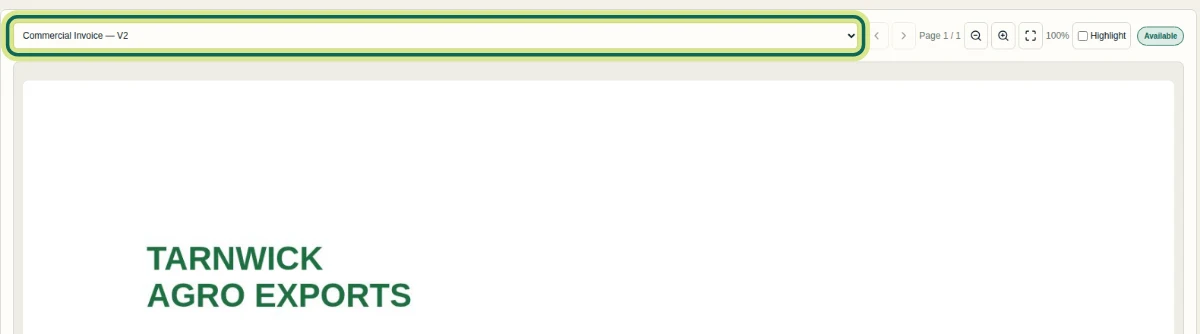
Step 1 Download one version or the latest set
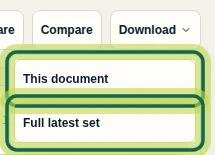
With the intended version selected in Viewer, open Download. Choose This document for the displayed version, or Full latest set for the current active shipment documents combined into one PDF. Downloads use image-only display content with the shipment’s watermark policy applied; do not expect the original uploaded file or an editable text PDF.
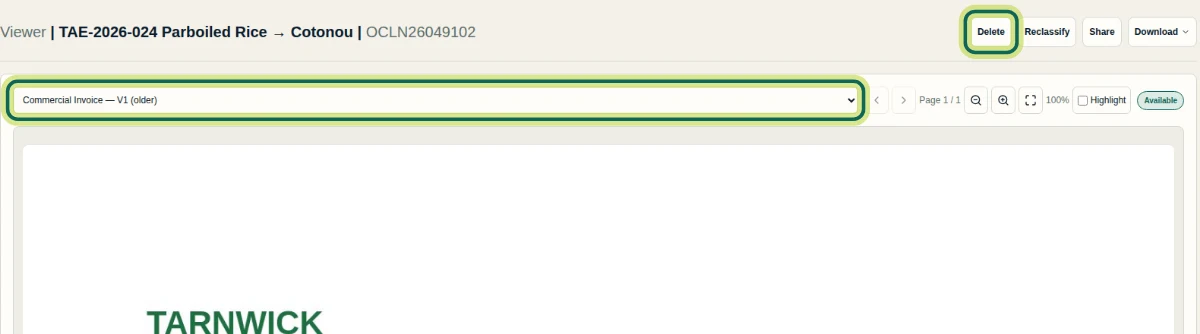
Step 2 Select the version to delete
In Viewer, select the exact version you want to remove, then choose Delete. Here the selected entry is Commercial Invoice — V1 (older). Deletion targets this version. If you delete a current version instead, an older version does not automatically become current.
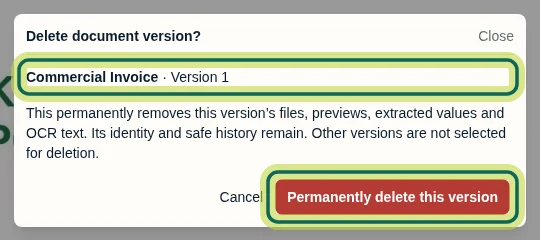
Step 3 Read the warning and confirm
In Delete document version?, verify Commercial Invoice · Version 1 matches the version you intend to delete. Deletion permanently removes that version’s files, previews, extracted values and OCR text, while retaining its identity and safe history. Other versions are not selected for deletion. Select Permanently delete this version to proceed, or Cancel to keep it. There is no undo in this workflow.
Step 4 Verify that deletion has completed
After confirming deletion in Viewer, wait for Deleted before treating removal as complete. The completed message confirms that document content, extracted values and OCR text are unavailable, while version history is retained. Retained history does not mean all old extracted values remain readable. A deletion request alone is not completion. If the result cannot be confirmed, use Reload document status before trying again; Deletion failed is not a successful result. If Deleting remains visible, select Reload document status.

Step 5 Check the version you kept
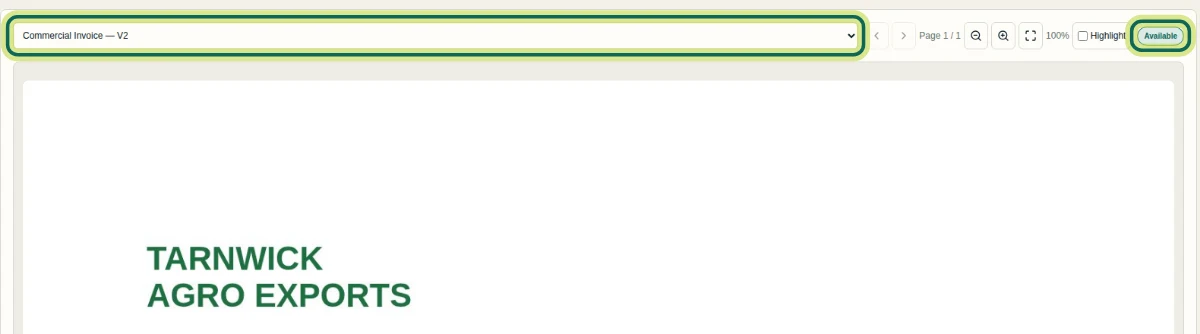
In Viewer, select Commercial Invoice — V2 again and check that it remains Available. In this recording, deleting version one leaves version two available with its invoice preview. Check the particular version you intended to keep.
Step 6 Check the deletion history
Select Activity in the shipment menu and look for Document deletion requested and Document deletion completed. The recording shows both entries, as well as the earlier download events. If needed, select Document deletion requested or Document deletion completed in the Action filter and choose Apply. Next, review the extracted fields for the document version you are keeping.

Step 7
Expected result
You can download the displayed version or the current active set, verify permanent deletion of the selected older version, and confirm that the newer version remains available and Activity records the deletion.
Next tutorial
Was this helpful?
If something did not work as described, tell us and we will help.