How to Identify Discrepancies Between Documents
Compare conflicting field readings, check their source pages, and distinguish document agreement from approval.
- ForPeople who compare shipment document values before making or requesting a review decision.
- Task timeAbout 3 min
- Video2:12
- Last checked2026-10-23
Overview
Use Fields Requiring Attention to compare Package Count readings across shipment documents, then inspect the invoice and bill of lading source pages. A matching Port of Loading example shows why agreement still needs a review decision.
What you'll learn
- Find a conflicting field from Overview
- Compare candidate values and their source documents
- Check printed values and column headings in the Viewer
- Distinguish Ready to approve from an approved decision
Before you begin
- A shipment with processed documents and extracted fields available for review Upload Shipping Documents
- Access to the shipment, its structured fields and document previews; approval permission is unnecessary for comparison
- Familiarity with opening document sources in the Viewer Use the Evidence Viewer
Step-by-step guide
Open Fields Requiring Attention
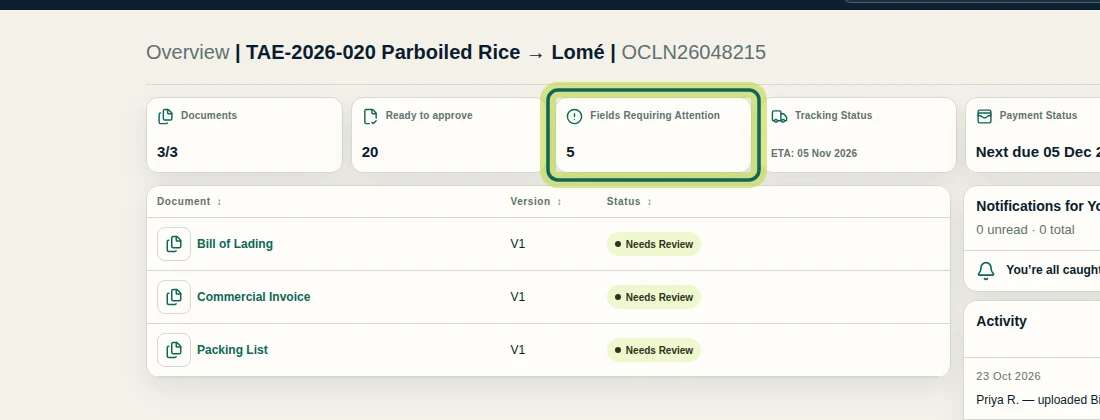
Open your shipment's Overview, then select Fields Requiring Attention. This example has five values needing attention across a Bill of Lading, a Commercial Invoice and a Packing List. You need access to shipment fields and document previews to follow the comparison. Which fields appear depends on the shipment's field policy and Setup; this list does not guarantee that every discrepancy has been found.
Step 1 Open the conflicting field
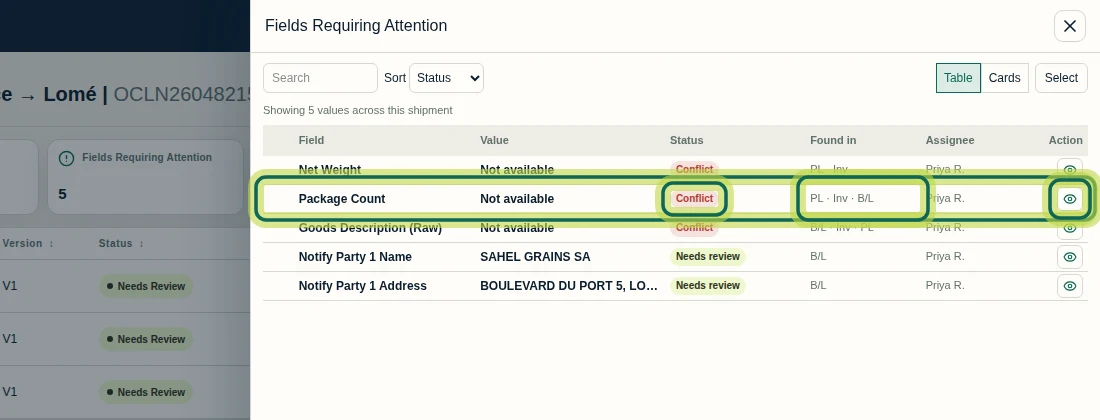
In Fields Requiring Attention, find Package Count, marked Conflict. Check Found in to see the contributing documents: PL is the Packing List, Inv is the Commercial Invoice, and B/L is the Bill of Lading. Select the row's eye button, Review values for Package Count, to compare its readings. A reported conflict is a reason to inspect the evidence before deciding which value to keep.
Step 2 Compare the readings and their sources
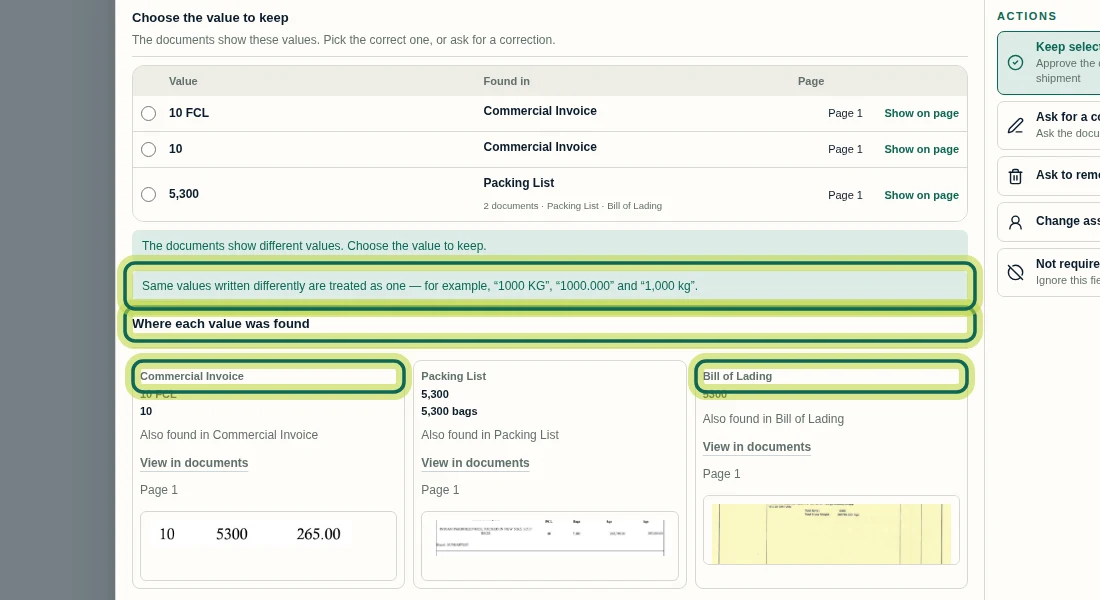
In the Package Count dialog, compare the rows under Choose the value to keep and check Found in. The invoice contributes 10 FCL and 10; the 5,300 choice is supported by the Packing List and Bill of Lading. Under Where each value was found, inspect each document card and page thumbnail. In this example, 5,300, 5,300 bags and 5300 are grouped as one choice. Equivalent forms can be grouped, but do not assume every difference in wording or units is harmless. Opening this dialog does not approve a value.
Step 3 Open the invoice's source evidence
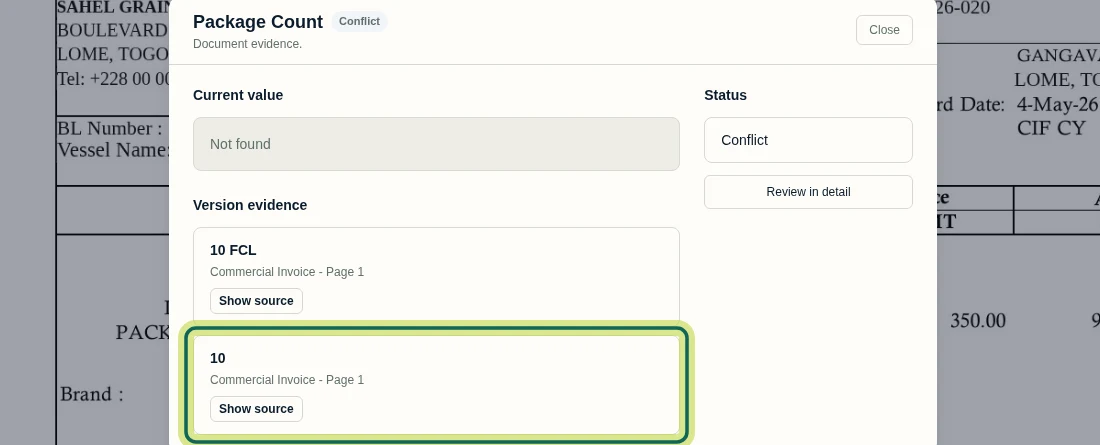
In the Package Count dialog, select Show on page beside the invoice's 10 row. This opens Viewer on the Commercial Invoice and its document evidence. Under Version evidence, find 10, labelled Commercial Invoice - Page 1, and select Show source. Source highlights are available where the value's location is known; do not expect every extracted value to have a precise highlight.
Step 4 Read the invoice's column headings
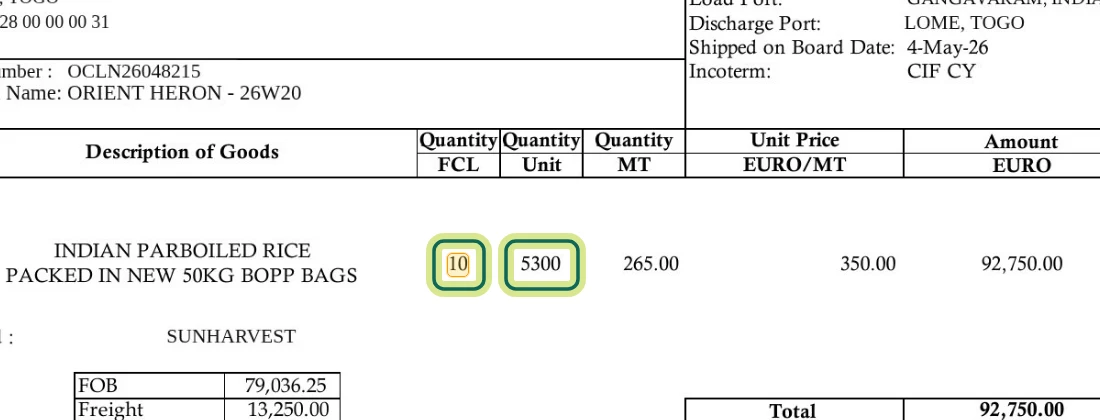
After selecting Show source for the invoice's 10 reading, compare the highlighted number with its column heading. Here 10 is printed under Quantity FCL, while 5300 is printed under Quantity Unit. Use the surrounding labels to understand what each number measures before making a field decision; the two printed numbers represent different quantities.
Step 5 Check the bill of lading's item count
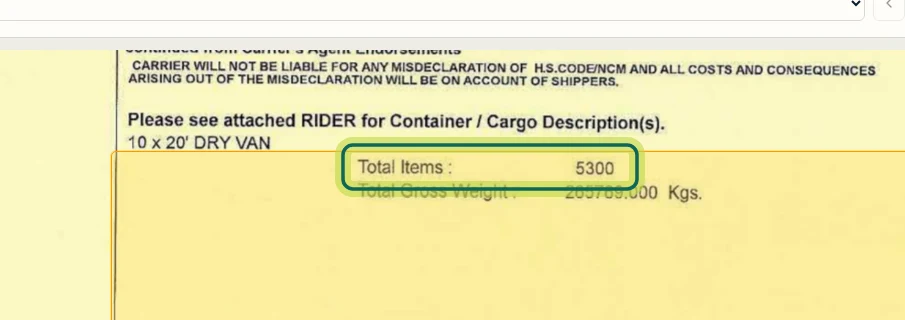
To check the other source, open Package Count again from Overview, then use the page-one thumbnail in the Bill of Lading card under Where each value was found. In the document evidence, select Show source for 5300. The printed Total Items value is 5300. Compare that context with the invoice's FCL and unit columns to substantiate the discrepancy before deciding what to keep.
Step 6 Distinguish agreement from approval
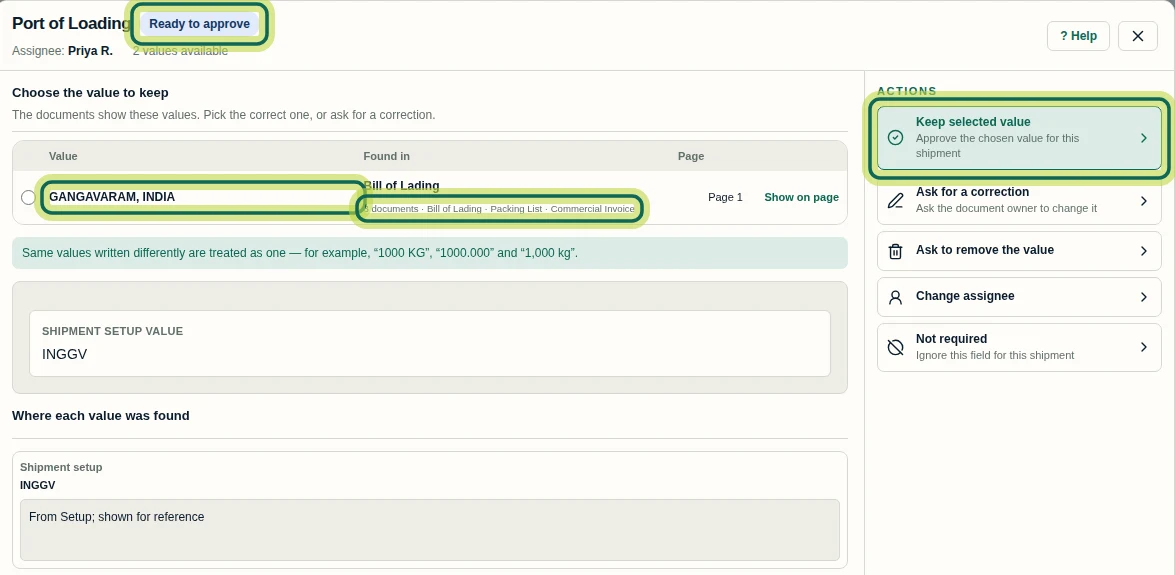
Return to Overview, open Ready to approve, and select the eye button for Port of Loading. Here GANGAVARAM, INDIA is supported by three documents, while SHIPMENT SETUP VALUE shows INGGV separately for reference. Agreement does not prove correctness, and Ready to approve is not Approved. This comparison leaves the review decision unsaved. Next, follow the field-review tutorial to choose Keep selected value or Ask for a correction and save an appropriate decision with the required permission.
Step 7
Expected result
You can explain the Package Count discrepancy using the invoice's FCL and unit columns and the bill of lading's Total Items, and recognise that matching evidence still awaits an explicit review decision.
Next tutorial
Was this helpful?
If something did not work as described, tell us and we will help.