How to Record a Payment Made
Record a supplier payment against a payable invoice, preview its allocation, and verify the remaining balance.
- ForInternal Company users responsible for recording supplier payments and checking payable balances
- Task timeAbout 3 min
- Video2:47
- Last checked2026-10-23
Overview
Use Payments and the Purchase side of Shipment Ledger to record a payment already made to a supplier. Apply a partial payment to an open invoice, preview the remaining amount, then verify the active allocation and updated payable balance. Recording a payment in Shiplete does not send money or initiate a bank transfer.
What you'll learn
- Find the correct supplier and payable shipment
- Record a payment with its date, currency, amount, reference and note
- Preview the invoice allocation and remaining payable amount
- Verify the payment in transaction history and Shipment allocations
- Check the updated Paid / Received and Net due figures
Before you begin
- A shipment with the intended supplier on its Purchase side and an eligible open payable invoice Enter Shipment Setup
- Company Finance viewing access for the Payments dashboard route, plus permission to record Finance transactions for the Company or this shipment; Shipment Admin alone does not grant payment recording permission
- The date, currency, amount and identifying details of a payment already made to the supplier
Step-by-step guide
Find the supplier's payable shipment
Open Payments, select Payables, and find the shipment. Confirm the supplier in Party, then select the shipment name. In this example, TAE-2026-023 Red Chilli Teja → Felixstowe has a payable to Godavari Rice Mills Pvt. Ltd. of -61,200.00 euros. You need Company Finance viewing access for this route, plus permission to record Finance transactions for the Company or for this shipment; a Shipment Admin role alone does not grant permission to record payments. The shipment must already have a payable position for the intended supplier. Recording a payment in Shiplete records money paid; it does not send money or initiate a bank transfer.

Step 1 Select Payment for the Purchase side
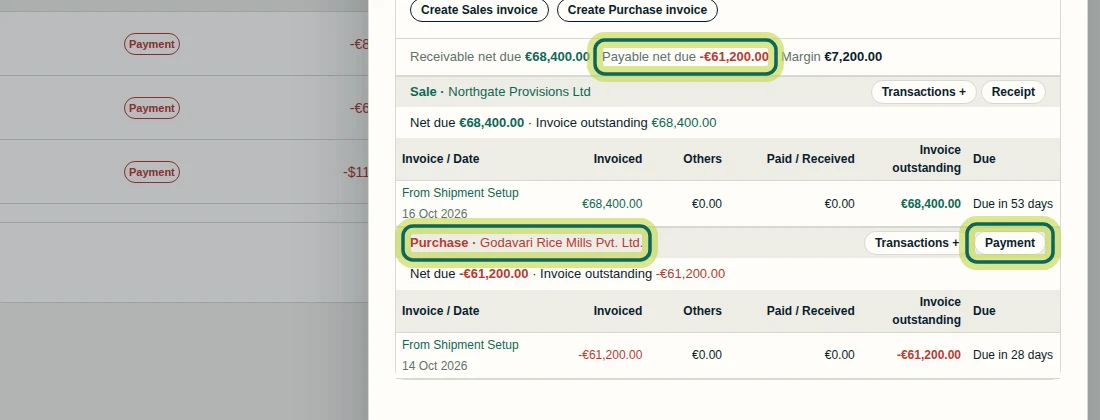
In Shipment Ledger, find Purchase · Godavari Rice Mills Pvt. Ltd. and select its Payment button. Check Payable net due before continuing. Payable figures use a minus sign for amounts owed to, or paid to, the supplier. The Payment action fixes the payment direction, Own Company and Party to this Purchase side. If the supplier is wrong, close the form and return to the correct payable shipment.
Step 2 Enter the payment and choose its invoice
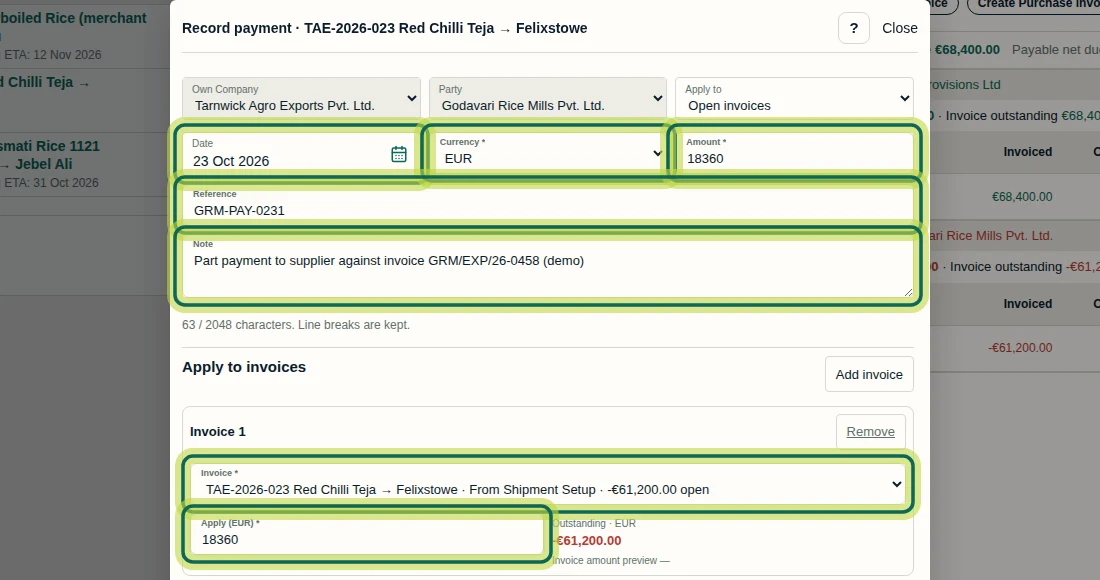
In Record payment, check Own Company and Party, then set Apply to to Open invoices. Enter Date, Currency and a positive Amount. The example uses 23 Oct 2026, euros and 18,360. Add Reference GRM-PAY-0231 and a Note describing the part payment. Notes have a 2,048-character limit. Under Apply to invoices, select the intended Invoice and enter 18,360 in Apply (euros). The example invoice is labelled From Shipment Setup, with -61,200.00 euros open. This shipment form offers invoices within this shipment; it is not an unrestricted supplier or cross-shipment invoice picker. A Shipment advance holds unapplied money and does not itself settle an invoice.
Step 3 Preview the allocation, then record it
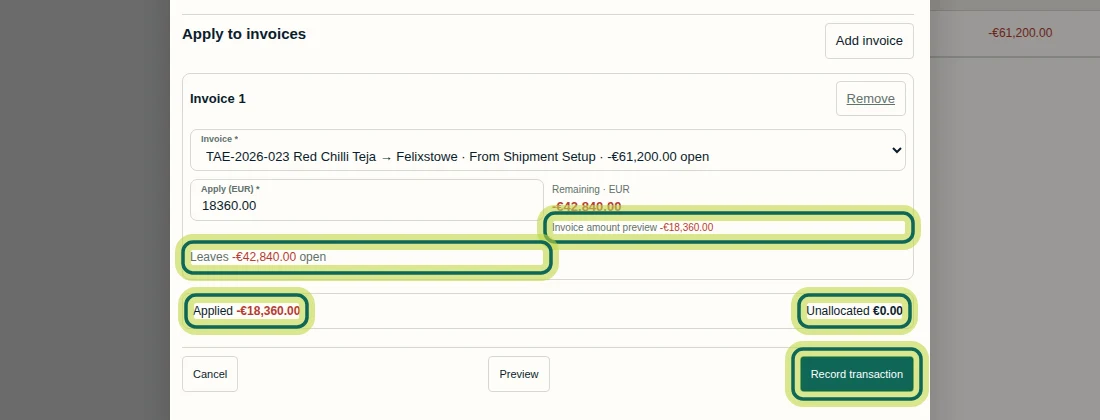
Select Preview and check the result before saving. For this partial payment, Applied is -18,360.00 euros, Unallocated is 0.00 euros, and the invoice Remaining amount is -42,840.00 euros. The form also says Leaves -42,840.00 euros open. Enter payment and application amounts as positive numbers even though payable results display as negatives. When the preview matches your intended payment and invoice, select Record transaction. The confirmation is Payment recorded and allocated across 1 invoice.
Step 4 Find the recorded Supplier Payment
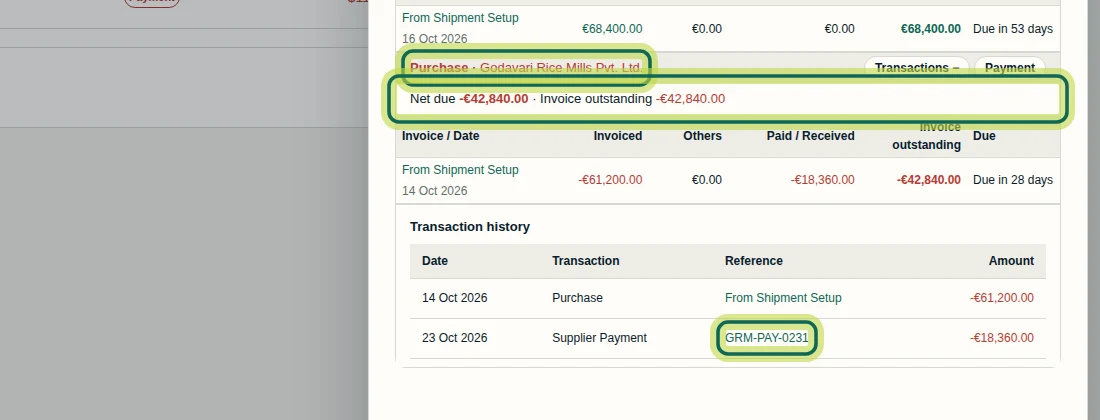
After recording, expand Transactions + on the Purchase row. Use the Purchase control: the Sale row has its own separate history. In Transaction history, find Supplier Payment, dated 23 Oct 2026, with reference GRM-PAY-0231 and amount -18,360.00 euros. The Purchase invoice above now shows -18,360.00 euros in Paid / Received and -42,840.00 euros in Invoice outstanding. Select the payment reference to open its details.
Step 5 Check the payment's active allocation
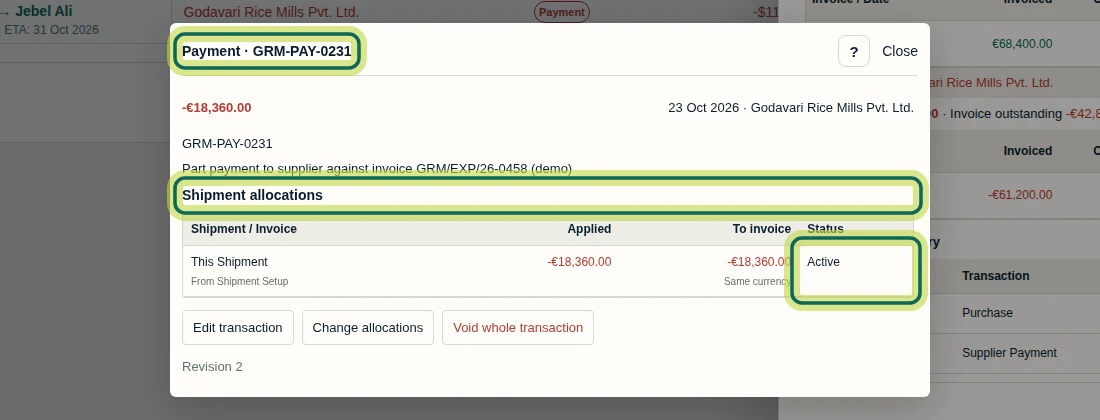
In Payment · GRM-PAY-0231, check the supplier, date, reference and note. Under Shipment allocations, confirm Applied and To invoice are both -18,360.00 euros and Status is Active. This confirms the allocation of the recorded payment to the invoice in Shiplete; it does not confirm bank settlement. Select Close, then close Shipment Ledger to return to Payables.
Step 6 Verify the remaining balance in Payables
Back in Payments → Payables, find the same shipment and supplier. Invoiced remains -61,200.00 euros, Paid / Received is now -18,360.00 euros, and Net due is -42,840.00 euros. This is a partial payment, so a payable balance remains. Paid / Received reflects allocated money, not all unapplied payment money. Next, continue with How to Allocate Payments Across Multiple Shipments.

Step 7
Expected result
A supplier payment is recorded and actively allocated to the intended payable invoice. In the fictional example, 18,360 euros is applied to a 61,200 euros invoice: Paid / Received becomes -18,360.00 euros, and Invoice outstanding and Net due become -42,840.00 euros.
Common issues
- The Payment button is missing.
- View-only users can inspect balances and history but cannot record payments. Ask a Company administrator to check your permission to record Finance transactions for the Company or this shipment; Shipment Admin alone is insufficient. The intended supplier must also have a payable position on the shipment.
- The form shows the wrong supplier and the Party field cannot be changed.
- The Purchase Payment action fixes Own Company and Party. Close the form, find the correct payable shipment and select Payment on its Purchase row.
- The applied payment appears as a negative amount.
- Payable invoice, paid and balance figures display as negatives. Enter a positive Amount and Apply (euros) value, then use Preview to check Applied, Unallocated and the remaining invoice amount.
Next tutorial
Was this helpful?
If something did not work as described, tell us and we will help.