How to Reuse Masters in Shipments and Commercial Documents
Select saved parties and products in Shipment Setup, reuse Setup in a proforma invoice, and save document changes separately.
- ForPeople who prepare shipment Setup and commercial documents using their Company's saved parties and products.
- Task timeAbout 3 min
- Video2:33
- Last checked2026-10-23
Overview
Reuse Party and Product Master details through explicit selection in Shipment Setup and a proforma invoice. Choose expected party details, check product defaults, enter shipment-specific values and save Setup. Then create an invoice from saved Setup, choose another document product and an issuer bank account, and save and preview the draft. Saved values stay as captured until explicitly changed; master edits do not automatically refresh shipments or documents.
What you'll learn
- Choose a saved party and its expected address and contact in Setup
- Reuse product details while entering shipment quantity and rate separately
- Create a proforma invoice from saved Shipment Setup values
- Choose a document product and issuer bank account
- Save Setup and the document separately, then preview the saved draft
Before you begin
- An editable shipment and familiarity with Shipment Setup Enter Shipment Setup
- Saved Company parties, products and an issuer bank account if needed
- Permission to manage Company commercial documents, edit this shipment's Setup, view Company Masters and edit the document
- Familiarity with commercial document generation Introduction to Document Generation
Step-by-step guide
Choose a saved party in Setup
Open the shipment, select Setup, then Parties. Type part of a saved party's name in Consignee name and select the matching result. This example selects Northwind Foods FZE (Demo). You need permission to edit the shipment's Setup and view Company Masters to make fresh master selections. Make sure Buyer is ticked for the Consignee (and Seller for your Own company); choosing a Consignee alone does not make it the invoice Buyer.

Step 1 Select the expected party details
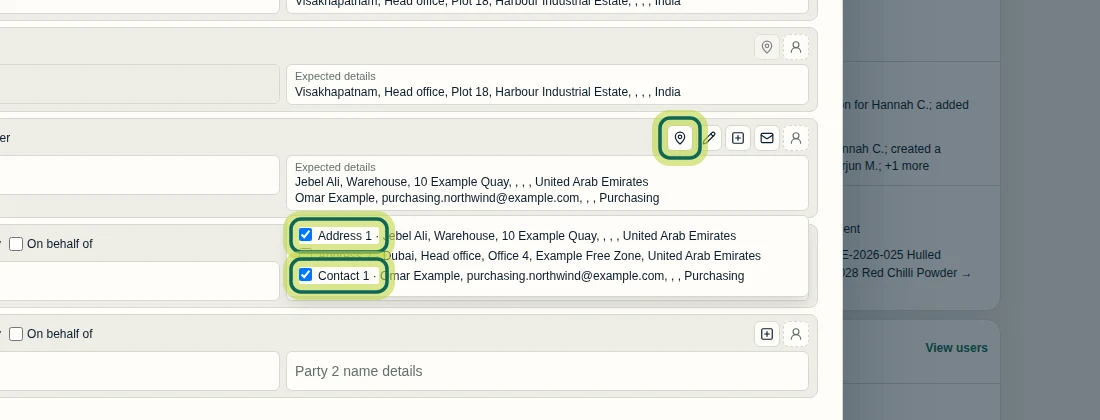
In Parties, select the location-pin button beside Consignee to Choose expected details. Tick the address and contact intended for this shipment; this example uses Address 1 and Contact 1. Review your selections before saving. These are shipment expectations; they do not approve values extracted from uploaded documents.
Step 2 Reuse a product and save Setup
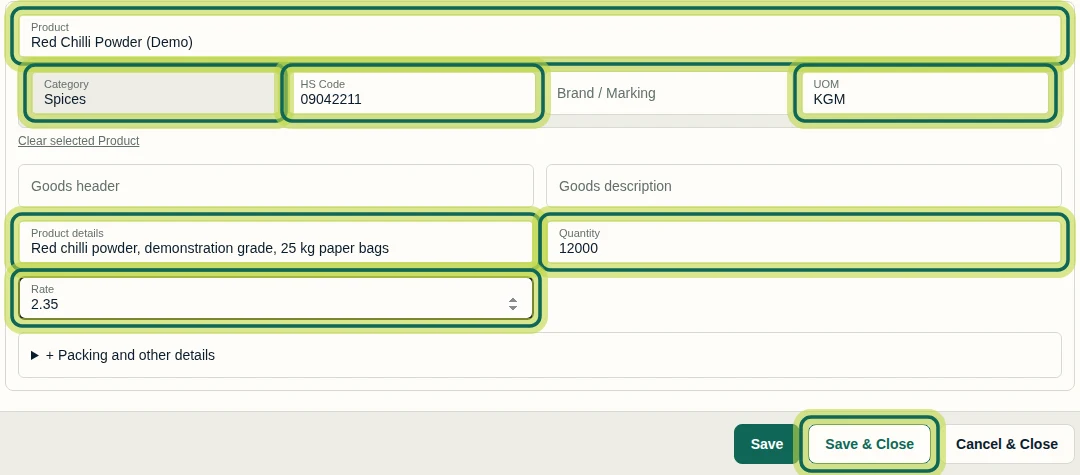
Open Goods, select Single, then search in Product and choose the saved product. This example uses Red Chilli Powder (Demo). Review the filled Category, HS Code, UOM and Product details. Enter Quantity and Rate for this shipment separately; the example uses 12000 and 2.35. Select Save & Close to save Setup. Changing Setup does not automatically update existing commercial documents.
Step 3 Create a proforma invoice from saved Setup
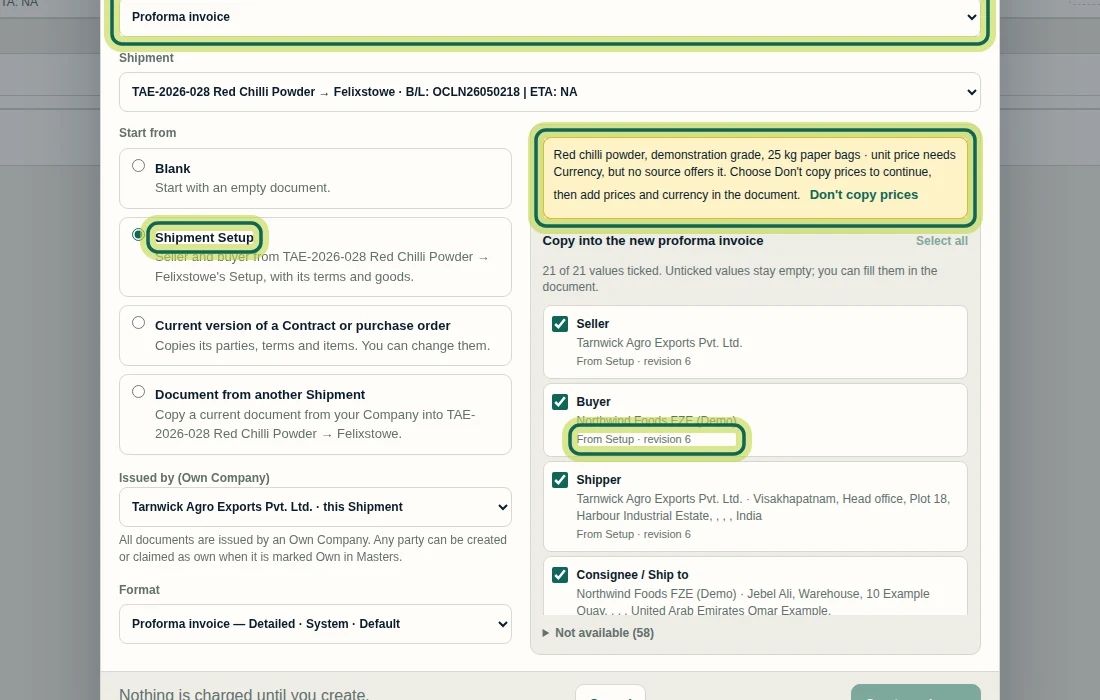
Open Commercial documents and select Create document. Choose Proforma invoice, check Shipment, then select Shipment Setup under Start from. Review Issued by (Own Company), Format and the ticked values under Copy into the new proforma invoice. From Setup · revision 6 identifies the saved Setup used here. If the warning says the unit price needs Currency and no source offers it, select Don't copy prices, then Create and open. Add prices and currency in the document afterward. Setup-sourced party values start from saved Setup; they are not silently replaced with today's master details.
Step 4 Reuse a product on another document line
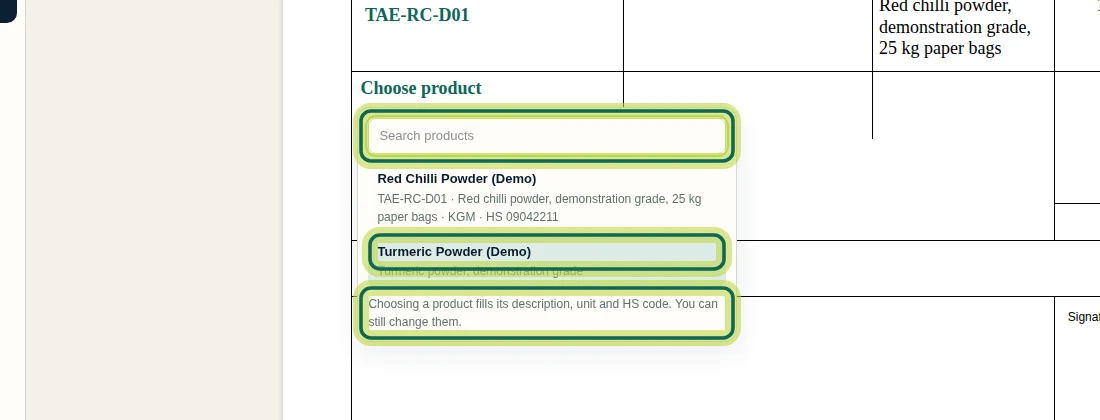
In the saved invoice editor, use Insert after item 1 to add another goods line, then select Choose product on that line. Use Search products or select a listed product, such as Turmeric Powder (Demo). The choice fills description, unit and HS code where the product supplies them. In this picker the choice takes effect directly; there is no separate Apply step. Check the filled values and enter the line's quantity and unit price yourself. Save the document with Save draft.
Step 5 Choose the issuer bank account
If the invoice needs an issuer bank account, select an available account under Issuer bank account. This example chooses US dollars · Demo Commerce Bank from the issuing Own Company's saved accounts. Select Save draft at the top to save the document change. Selecting a bank account is separate from completing item prices and currency; the missing-price warnings still need attention. Bank details in printed output depend on the chosen format; this recording does not verify a printed bank block.

Step 6 Confirm the document save and preview
After Save draft, check Saved and Document saved., then select Preview to inspect the document's appearance. Setup and the document have separate saves; saving the invoice does not update the source Masters or Setup. A saved draft can still be incomplete. In this example, warnings remain for missing unit prices, the second item's quantity and an unset Incoterm. Complete those values before treating the invoice as ready to use. Next, see Understanding Master Updates, Snapshots and Inactive Records for how later master changes affect saved values.

Step 7
Expected result
The shipment Setup retains the chosen party and product details, and a separately saved proforma invoice contains the Setup-sourced buyer and goods plus the selected additional product and issuer bank account. Preview shows the saved draft; outstanding completeness warnings still need attention.
Common issues
- Create and open is disabled because a copied unit price needs Currency and no source offers it.
- Select Don't copy prices in the creation warning, then Create and open. Add prices and currency in the document afterward.
- The saved invoice still warns that quantities or unit prices are missing, or that the Incoterm is not set.
- Complete the missing document values and save again. Saved confirms that your changes were saved; it does not mean the invoice is complete.
- The editor shows Unsaved changes after choosing a document product or issuer bank account.
- Select Save draft and check Saved. Saving Shipment Setup does not save later document edits.
Next tutorial
Was this helpful?
If something did not work as described, tell us and we will help.