How to Upload Revised Documents and Manage Versions
Upload a revised document as a replacement, inspect retained versions, and compare the values Shiplete read.
- ForShipment users who upload revised documents or check document versions
- Task timeAbout 3 min
- Video2:17
- Last checked2026-10-23
Overview
Add a revised upload under the same document type using Add as replacement. Confirm the new version, inspect its retained predecessor in Viewer, and compare available extracted field values before reviewing the revision.
What you'll learn
- Upload a revised file using Add as replacement
- Confirm the new version on Overview
- Inspect current and older versions in Viewer
- Compare read values and interpret Not available correctly
Before you begin
- A shipment with an existing uploaded document and a genuinely revised file of the same intended document type Upload Shipping Documents
- Upload permission on a shipment that allows changes, document access for inspection, and field access for Compare
Step-by-step guide
Add the revised file under the same document type
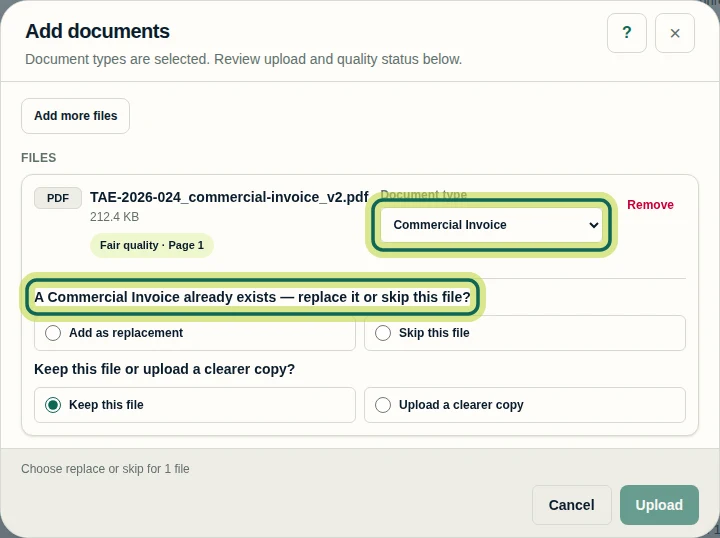
Open the shipment and select Add Documents, then Choose files to select your revised document. In Add documents, check Document type and select the same intended type as the existing document. In this example, it is Commercial Invoice. You need permission to upload documents, and the shipment must allow changes. A matching filename alone does not link versions; the replacement choice does.
Step 1 Choose Add as replacement and upload
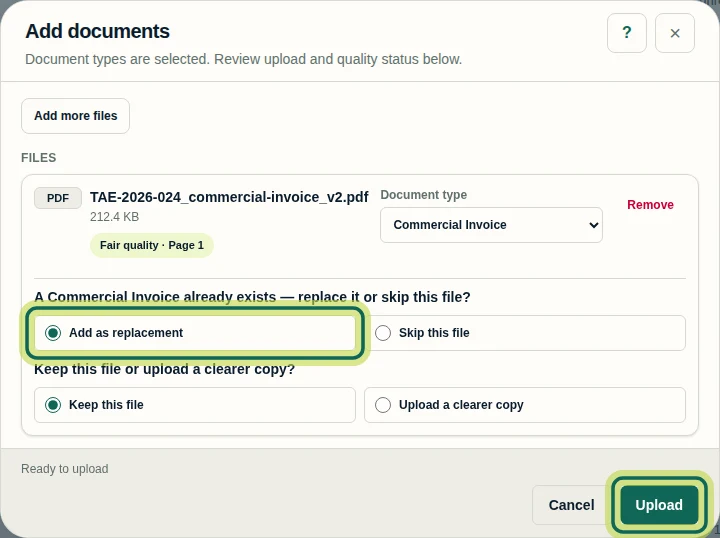
When asked whether to replace the existing document or skip the file, select Add as replacement. Check the file and its quality choice before selecting Upload. Here, Keep this file is selected and the dialog says Ready to upload. Use Skip this file if you do not want to add it. Replacement creates a new version and retains the earlier file. An exact duplicate may instead be skipped; uploading identical content does not guarantee a new version.
Step 2 Confirm the new version on Overview
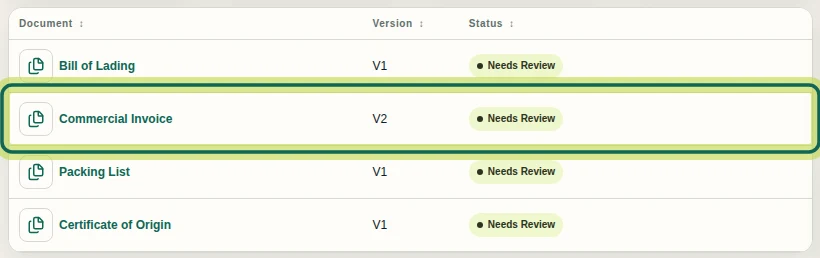
On Overview, find the document row and check Version. The recorded Commercial Invoice now shows V2 with Needs Review. Uploading a replacement does not approve its fields. Changed evidence can require another review, so do not assume that all earlier approvals carry over or that every approval is removed.
Step 3 Open the revised version in Viewer
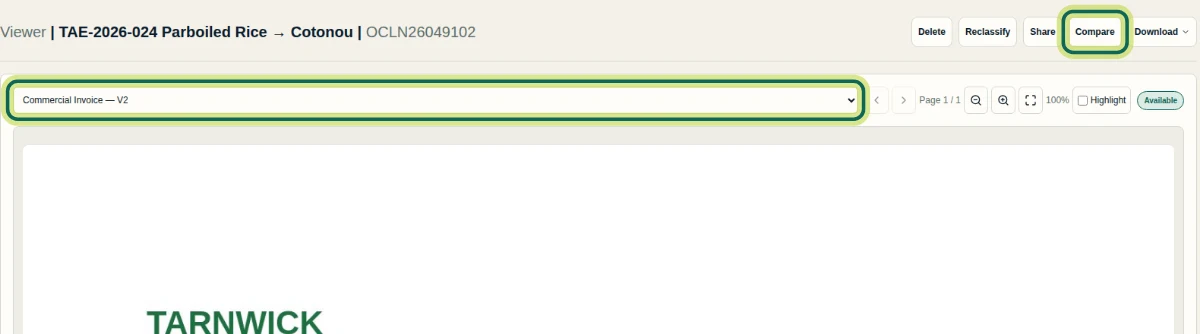
Select Viewer in the shipment menu. Use the document list at the top to choose Commercial Invoice — V2, or the latest version of your revised document. The preview and fields follow the selected version. Compare is available here for comparing extracted field values when you have field access; it does not compare the page images.
Step 4 Inspect the retained earlier version
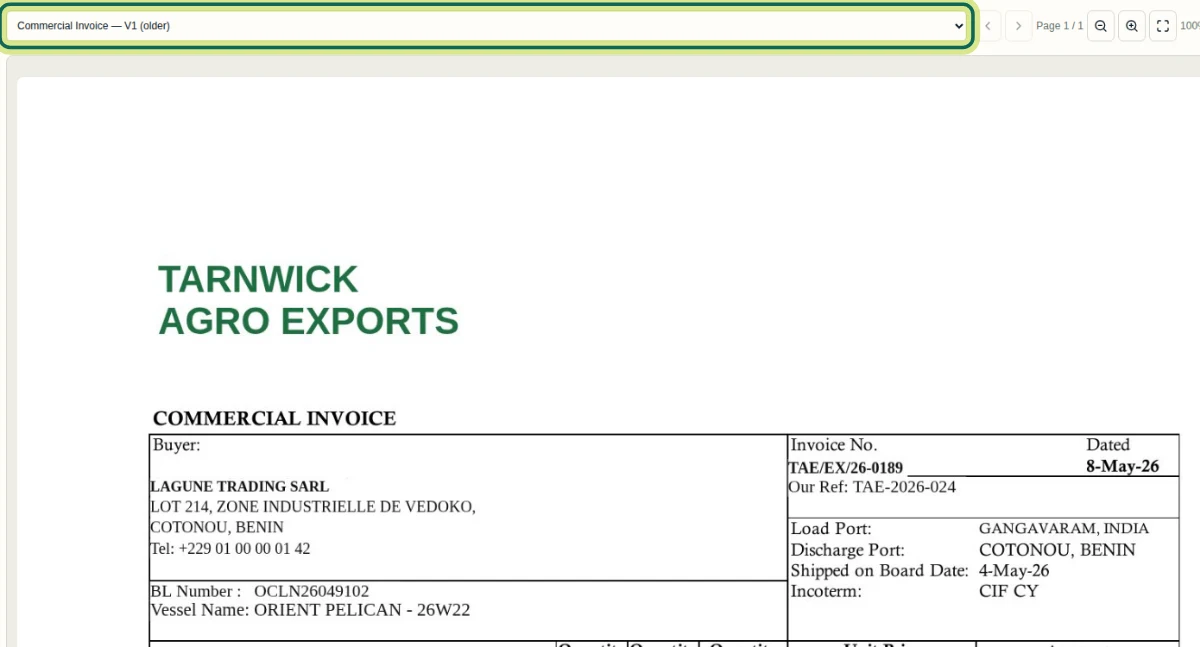
In Viewer, choose Commercial Invoice — V1 (older) from the document list to inspect the original file. In this recording, it still shows the invoice date 8-May-26. Selecting an older version lets you inspect it; it does not restore it as the current version. Historical inspection requires document access. An external shared-document link does not provide this historical picker.
Step 5 Compare the values and check unavailable evidence
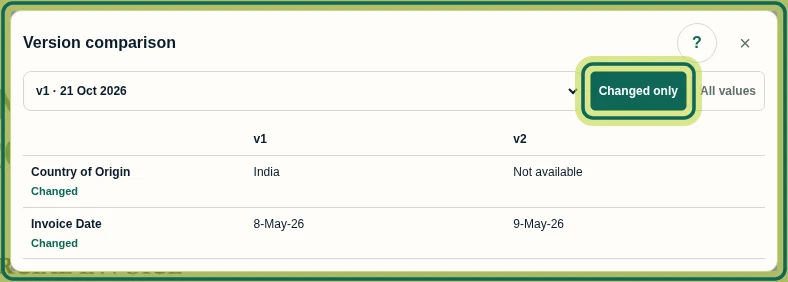
Return to Commercial Invoice — V2 and select Compare. In Version comparison, choose the earlier version from the list and use Changed only or All values. Here, Invoice Date reads 8-May-26 in version one and 9-May-26 in version two. Country of Origin reads India in version one and Not available in version two because the revised scan's value was not read. Although the row is marked Changed, unavailable evidence does not prove that the country was changed or stayed the same. Next, review the revised document's fields.
Step 6
Expected result
The revised upload appears as the next version, the earlier file remains available in Viewer, and you can compare available read values before reviewing the revised evidence.
Next tutorial
Was this helpful?
If something did not work as described, tell us and we will help.