How to Review a Corrected Document
Upload a corrected document as a replacement, inspect its new version, compare values and check whether the correction request remains open.
- ForShipment reviewers and people uploading corrected shipping documents
- Task timeAbout 3 min
- Video2:10
- Last checked2026-10-23
Overview
Start with an open correction request, upload the corrected copy into the same document slot, and inspect the latest version in Viewer. Compare its values with the earlier version, then check the request's actual outcome in Changes. In the recorded example, the invoice reaches version two but the request remains open as similar rather than exactly matching.
What you'll learn
- Find the document and value named in an open correction request
- Upload a corrected copy using Add as replacement
- Inspect the latest document version and compare its values with the earlier version
- Check why a correction request remains open and return to field review
Before you begin
- A shipment with an open correction request and the corrected document file How to Raise a Document Correction Request
- Permission to view change requests, upload replacement documents, view field values and preview document pages; approval needs separate permission and current field eligibility
- Familiarity with choosing files and document types during upload Upload Shipping Documents
Step-by-step guide
Find the document and requested correction
Open the shipment and select Changes. Under Open requests, find the field and document that need correcting. Compare Document value with Requested change. In this example, the request is for Net Weight on the Commercial Invoice, with a requested value of 265,000.00 kgs. Select Request corrected document for that row.
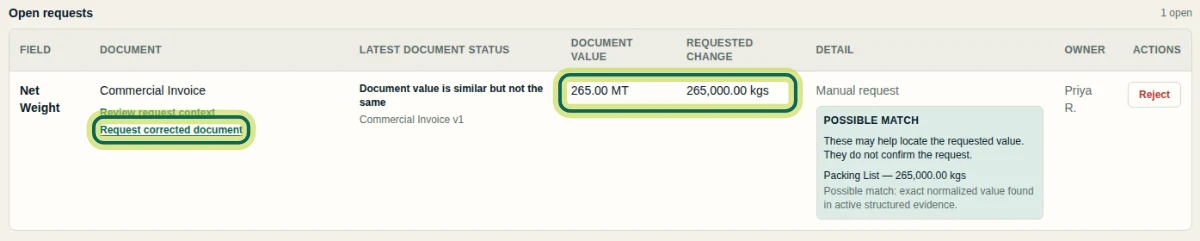
Step 1 Choose the corrected copy
In Add documents, select Choose files and choose the corrected document from your computer, or drop it into the upload area. Use the corrected copy for the document named in the request. The file still needs its intended Document type and a replacement choice before you upload it.
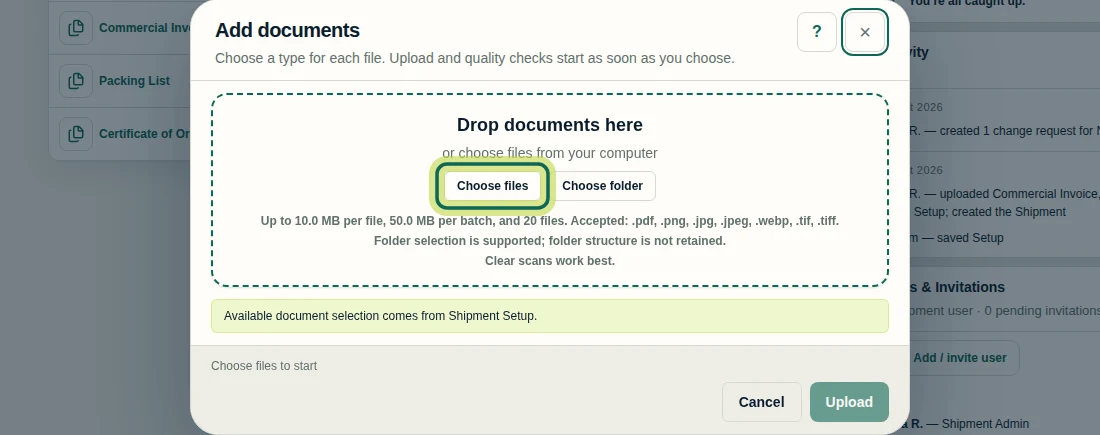
Step 2 Confirm the type and upload as a replacement
Check Document type is Commercial Invoice, the same document slot as the request. Under A Commercial Invoice already exists — replace it or skip this file?, select Add as replacement. Review Keep this file or upload a clearer copy?; the recording uses Keep this file for the file marked Fair quality. If a clearer copy is needed, use Upload a clearer copy. When Ready to upload appears, select Upload. The filename alone does not choose what gets replaced; a replacement creates a new version and preserves the earlier version's history.
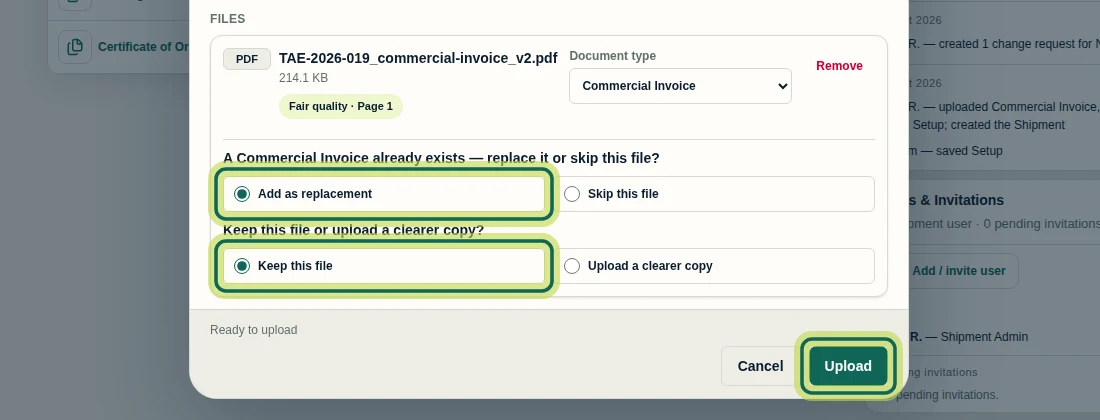
Step 3 Check the new version after processing
Return to Overview and find the replaced document. Wait while its status is Processing. In this recording, the Commercial Invoice becomes V2 with Needs Review. Confirm the document and version before continuing. Uploading a replacement does not approve every affected field or guarantee that the correction request has closed.
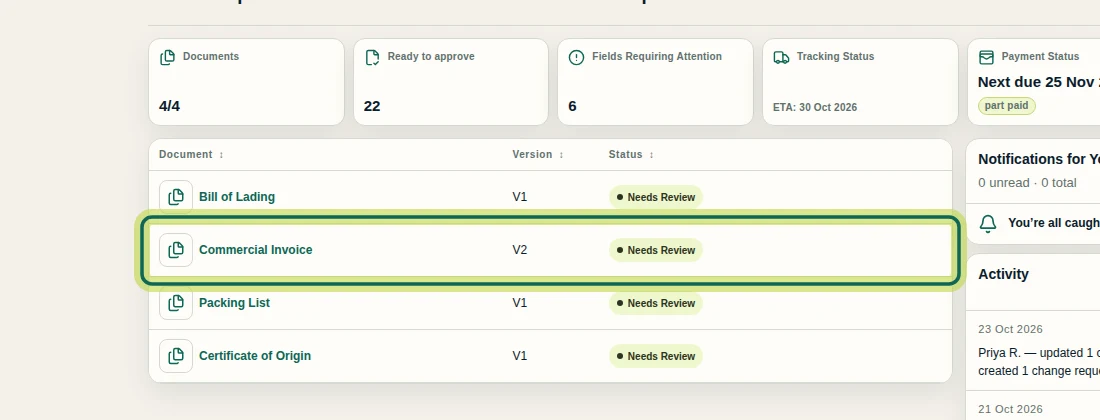
Step 4 Inspect the correction in the Viewer
Select Viewer and choose Commercial Invoice — V2 from the document selector. Inspect the corrected value on its source page. Here, the invoice shows Net Weight kgs with 265,000.00. Check the heading and units as well as the number; the page is the source for deciding whether the correction is suitable.
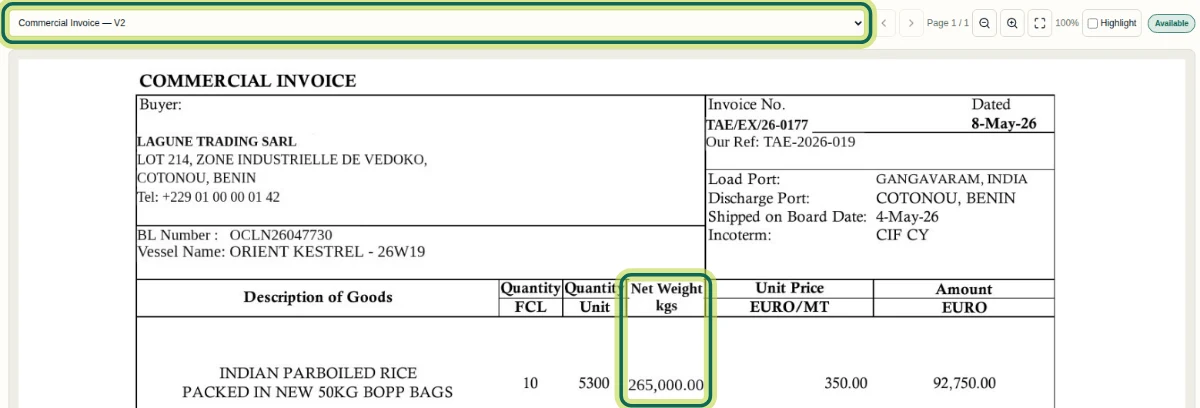
Step 5 Compare the values with the earlier version
With the latest invoice selected in Viewer, select Compare. In Version comparison, choose v1 in the earlier-version selector and select Changed only. The Net Weight row shows 265.00 in v1 and 265,000.00 in v2. Use All values when you want to inspect the wider list. Comparison covers values Shiplete read from the documents, not every visual change in the files, and a matching comparison does not approve the field.
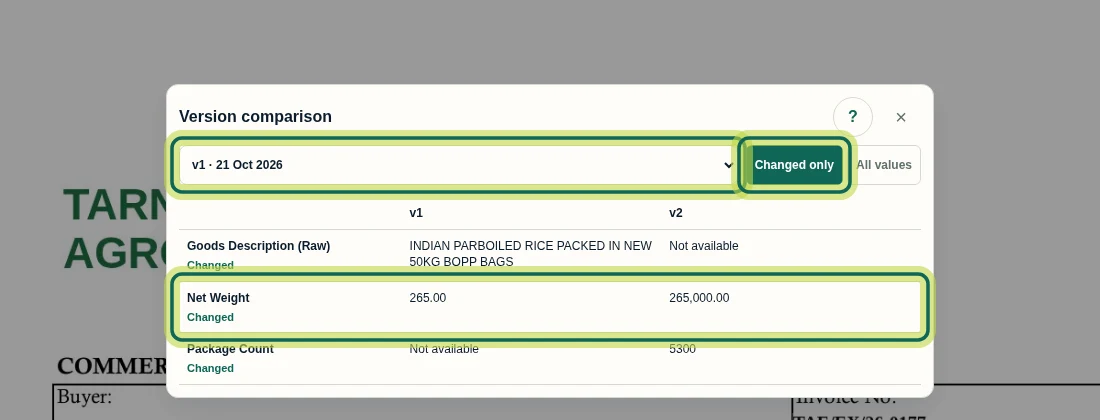
Step 6 Check whether the request is still open
Return to Changes and check the request's Latest document status, Document value and Requested change. A request closes automatically when the value Shiplete reads from the corrected document matches the request; similarity alone does not close it. Here the printed weight is corrected, but the value read uses a different unit spelling. Here, Commercial Invoice v2 is read as 265,000.00 KG, while the request is 265,000.00 kgs. The request stays under Open requests with Document value is similar but not the same. POSSIBLE MATCHES may help locate evidence but do not confirm the request. Select Review request context to continue reviewing the affected field. Approval requires separate permission and an eligible field; the upload itself is not approval.
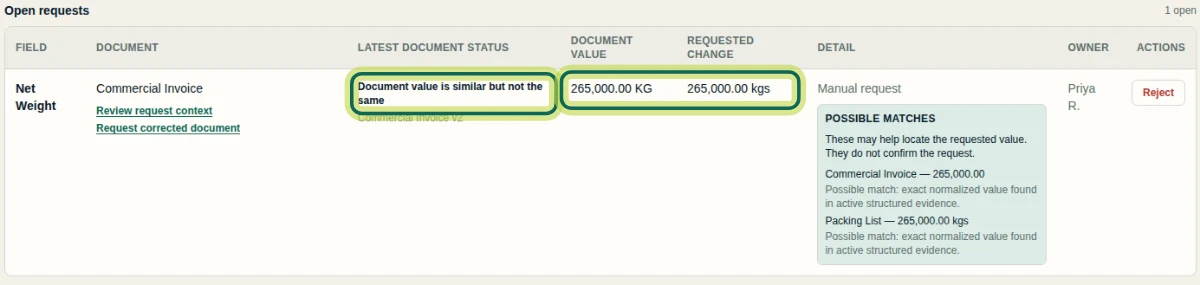
Step 7
Expected result
You have inspected the corrected document's new version, compared the values and checked the request outcome. In this example, Commercial Invoice v2 is available for review, but its Net Weight request remains open as Document value is similar but not the same.
Next tutorial
Was this helpful?
If something did not work as described, tell us and we will help.