How to Use Product Categories and Aliases
Reuse product category spelling, save alternate names and find products by category or alias in Product Master and shipment Setup.
- ForCompany users who organize product records and select products for shipments
- Task timeAbout 3 min
- Video2:10
- Last checked2026-10-23
Overview
Use category text to organize products in your Company and aliases to save alternate product names. Follow the Spices and Lal mirch examples, then find and select the product in shipment Setup without saving Setup changes.
What you'll learn
- Use category suggestions and reuse existing spelling when letter case differs
- Save an alias with the entry Save and then Save Product
- Search Product Master by category or alias
- Find a product in Setup Goods and recognize its read-only Category
- Understand the narrower search in commercial-document Product pickers
Before you begin
- Permission to view Masters for search, and permission to change Masters to add or edit categories and aliases. Company Owners and Admins have this authority; other users need the relevant permissions.
- Know how to create and edit a product in Product Master. How to Create and Manage Products
- For the Setup example, access to an editable shipment and permission to edit its Setup, as well as permission to view Masters. Enter Shipment Setup
Step-by-step guide
Choose a product category
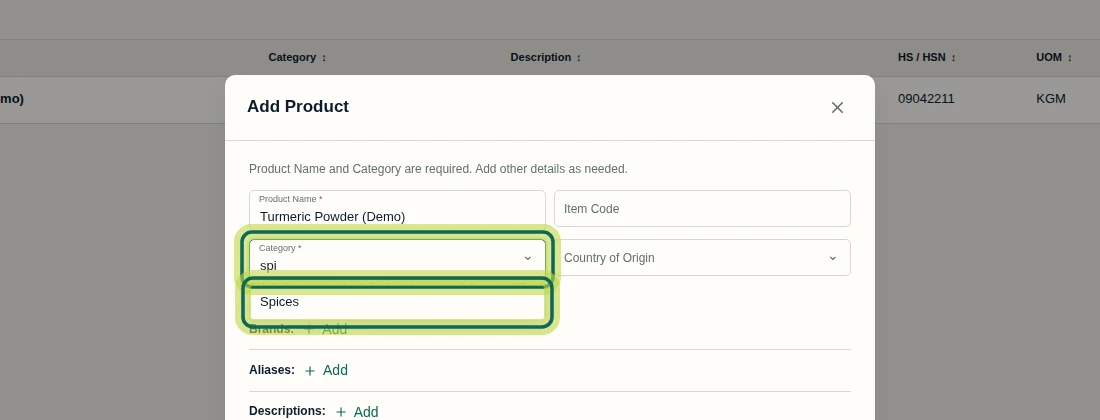
Open Company → Product Master and select Add Product. Enter Product Name, then type in Category. Suggestions come from products in your Company; select a suitable suggestion or enter category text. In this example, typing spi offers Spices. Both Product Name and Category are required.
Step 1 Save and check the category spelling
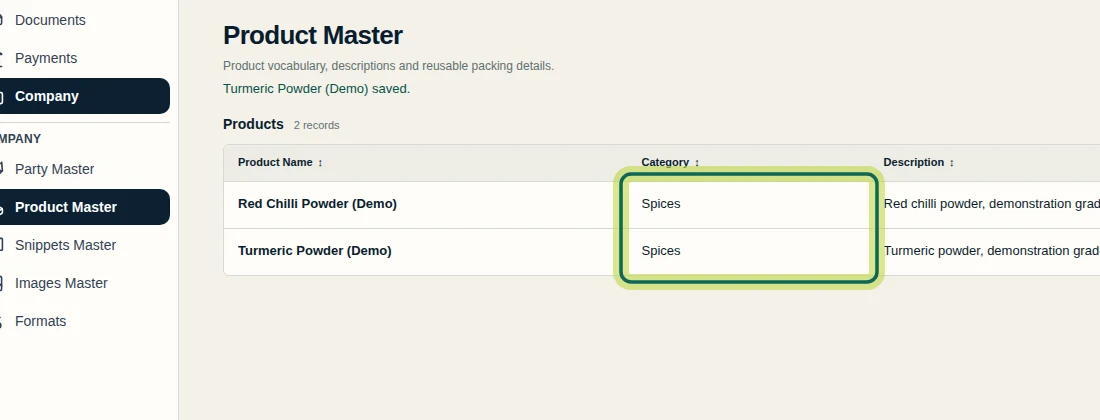
When the product is ready, select Save Product in the Add Product dialog. Check its Category in Product Master. When category text matches an existing category apart from letter case, Shiplete reuses the existing spelling. Here, entering spices for Turmeric Powder (Demo) saves it as Spices, matching Red Chilli Powder (Demo). Categories are text values on products in your Company, rather than a separately managed category tree.
Step 2 Add and save an alternate product name
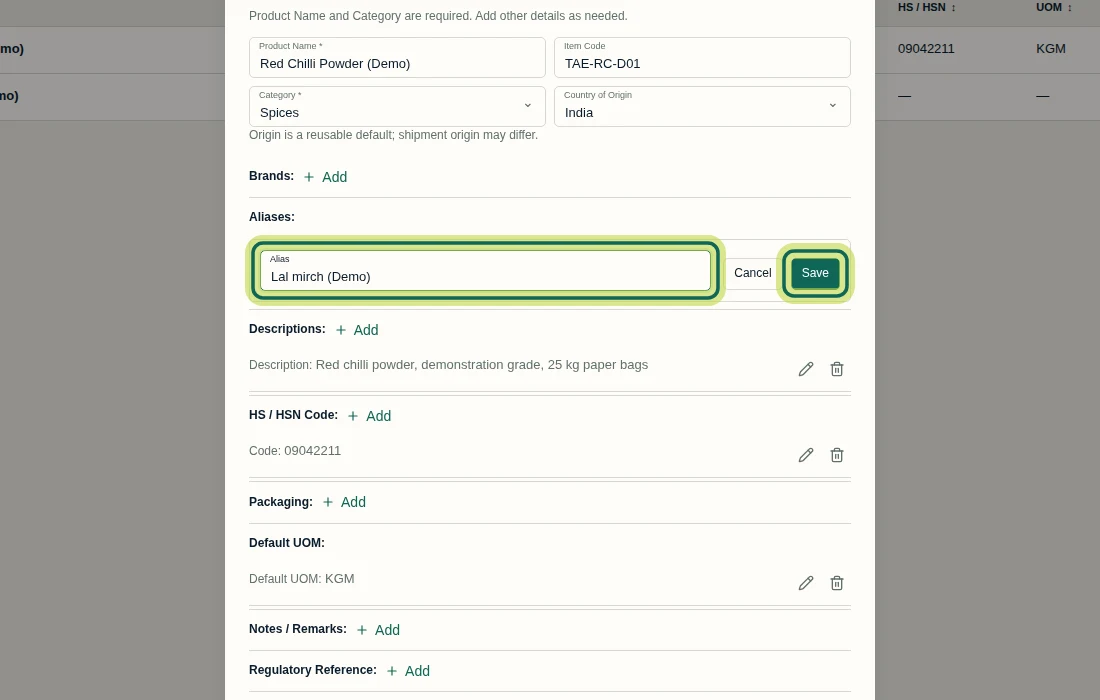
In Product Master, select the product’s pencil action to open Edit Product. Beside Aliases, select Add. Enter the alternate name in Alias, such as Lal mirch (Demo). Select Save beside the entry, then Save Product at the bottom of the dialog. The entry’s Save must be followed by Save Product to persist the alias with the product.
Step 3 Find products by category
In Product Master, enter a category such as Spices in Search product…. The list searches category text as well as other entered product values. Both demo products appear because their Category is Spices. This is a text search, so the results can also include products that match the same text in another searchable value.

Step 4 Find a product by its alias
In Product Master, replace the search text with the saved alias, or part of it. Searching Lal mirch returns Red Chilli Powder (Demo). The result keeps the product’s Product Name; the alias is not displayed in the default columns. Open the product’s View Product dialog to inspect its saved aliases when needed.

Step 5 Search by category or alias in shipment Setup
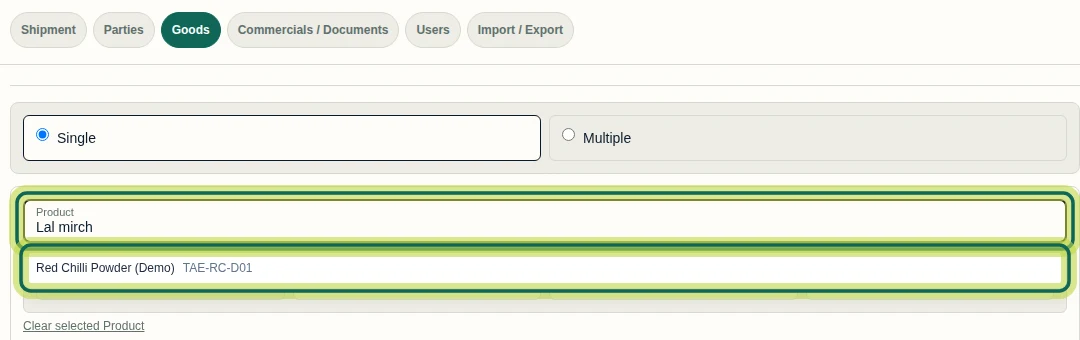
Open an editable shipment’s Setup and select Goods. With Single selected, type a category or alias in Product, then select the desired suggestion. In this recording, Spices finds both demo products and Lal mirch finds Red Chilli Powder (Demo). You need access to the shipment, permission to edit Setup and permission to view Masters. This category/alias search applies to Setup; commercial-document Product pickers search name, Item Code and description instead.
Step 6 Review the selected product
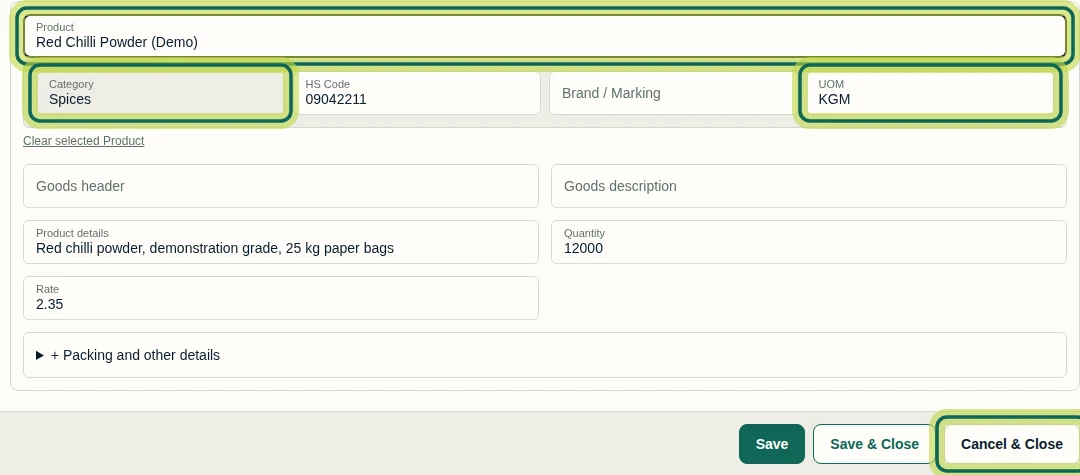
After selecting the product in Setup → Goods, review Category, HS Code, UOM and Product details. Category is read-only in Setup; edit the product’s category in Product Master. Editing a Master does not automatically replace values already adopted in existing Setup or documents. If you only wanted to check search and selection, select Cancel & Close. This recording closed without saving Setup changes. Next, learn how to reuse Masters in shipments and commercial documents.
Step 7
Expected result
The saved products share the existing Spices category spelling, the Red Chilli Powder product has the Lal mirch alias, and you can find it by category or alias in Product Master and Setup Goods.
Next tutorial
Was this helpful?
If something did not work as described, tell us and we will help.