How to Record a Payment Received
Record a buyer receipt, apply a part-payment to an open invoice, and check the remaining balance and allocation.
- ForInternal Company users who record buyer receipts and have Finance write access for the Company or the selected shipment
- Task timeAbout 3 min
- Video2:36
- Last checked2026-10-23
Overview
Record money received from a buyer using Receipt in Shipment Ledger. Apply it to an open invoice, preview the allocation, and verify the updated balance. This example records 42,840 US dollars against a 142,800 US dollar invoice, leaving 99,960 US dollars outstanding. A receipt is a record in Shiplete; this action does not move money or verify a bank transfer.
What you'll learn
- Open Receipt on the correct Sale in Shipment Ledger
- Enter receipt details and change both prefilled amounts for a part-payment
- Preview the invoice allocation before recording the transaction
- Verify the remaining balance and active receipt allocation
Before you begin
- A shipment with Own Company, buyer and Sale set up Enter Shipment Setup
- An eligible open receivable invoice for that Sale
- Company Finance viewing access for the Payments dashboard, plus permission to record Finance transactions for the Company or the selected shipment; the Shipment Admin preset alone does not include Finance manage
Step-by-step guide
Find the shipment in Receivables
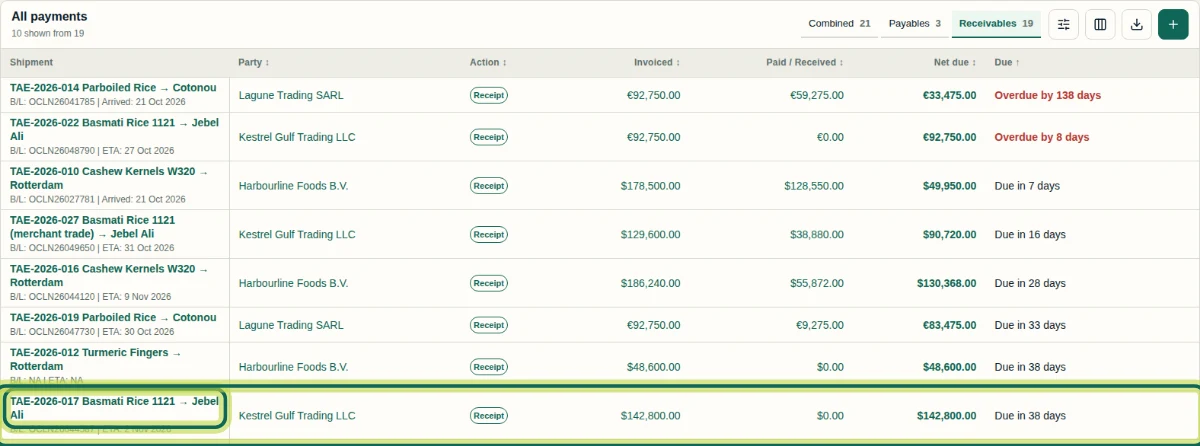
Open Payments, choose Receivables, and select the shipment name. This example uses TAE-2026-017, Basmati Rice 1121 to Jebel Ali, for Kestrel Gulf Trading LLC. Before the receipt, Paid / Received is 0.00 US dollars and Net due is 142,800.00 US dollars, both in US dollars. This route starts on the Company Payments dashboard, so you need Company Finance viewing access, plus permission to record Finance transactions for the Company or for this shipment. A Shipment Admin role alone does not include permission to record Finance transactions. Recording a receipt records money received; Shiplete does not move money or verify a bank transfer through this action.
Step 1 Open Receipt on the correct Sale
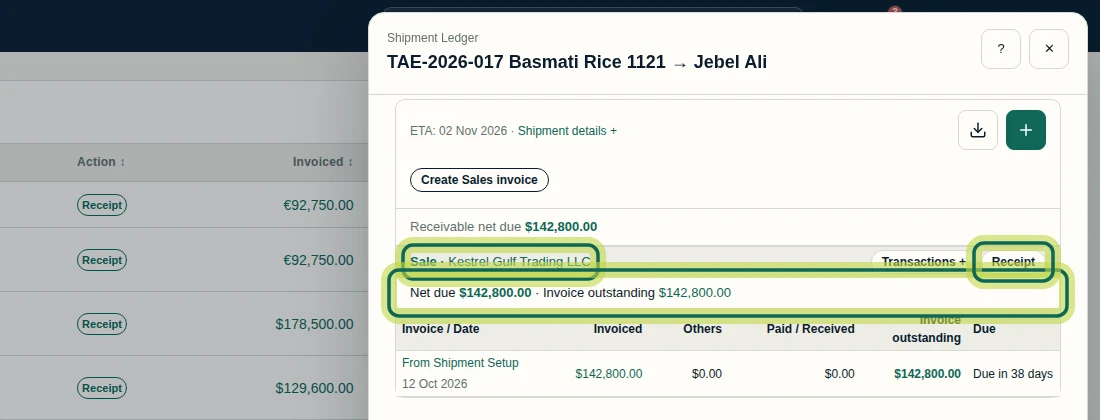
In Shipment Ledger, find the Sale for the buyer you received money from. Check Invoice outstanding before continuing; this example starts at 142,800.00 US dollars in US dollars against From Shipment Setup, dated 12 Oct 2026. Select Receipt on that Sale. This opens a receipt for the selected shipment and buyer.
Step 2 Enter the receipt details
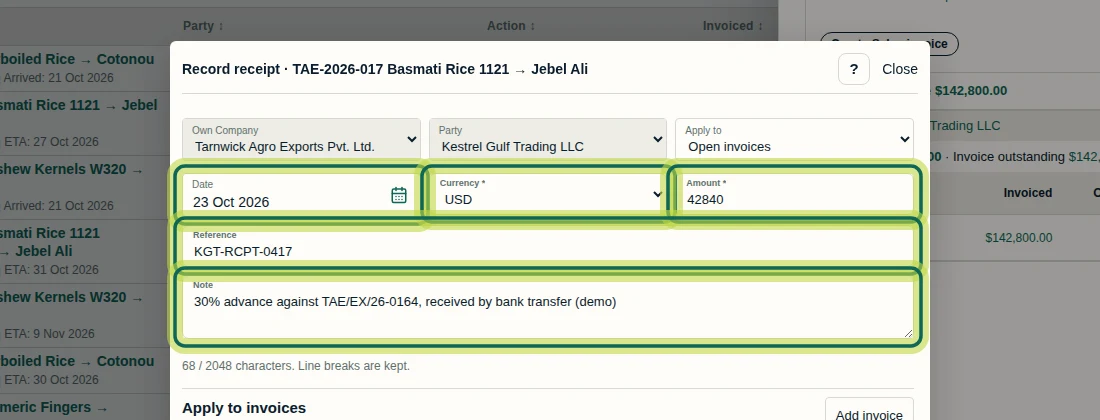
In Record receipt, check the fixed Own Company and Party, then keep Apply to set to Open invoices. Enter the Date, Currency and Amount received. For this example, use 23 Oct 2026, US dollars and 42840, meaning 42,840 US dollars. Add Reference KGT-RCPT-0417 and a Note identifying the receipt. The Reference limit is 256 characters; Note allows 2,048 characters and keeps line breaks. The fictional note says “30% advance,” but this example applies a part-payment to an invoice. Shipment advance is a separate option that keeps funds unapplied and does not mean an invoice was paid.
Step 3 Apply the part-payment to the invoice
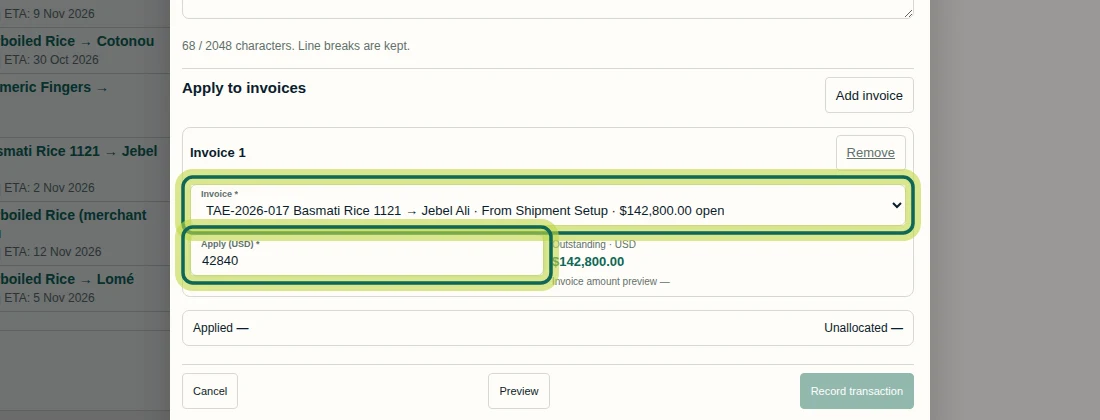
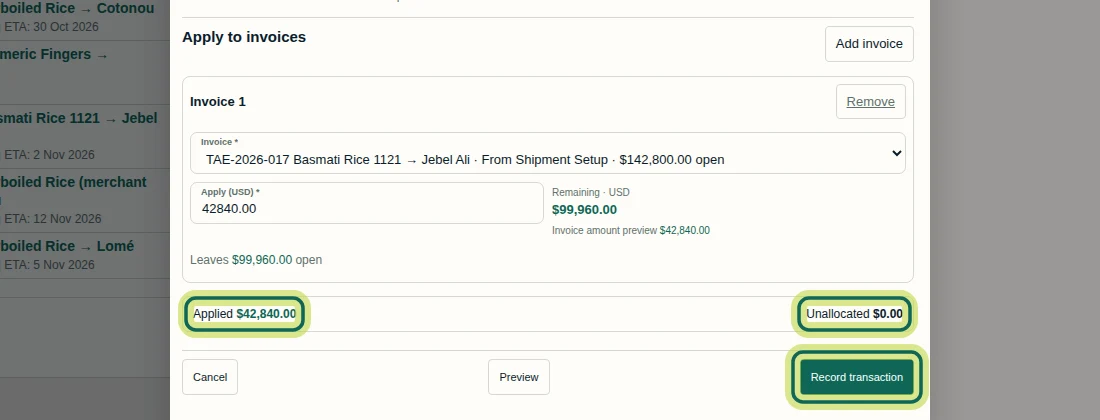
Under Apply to invoices, check Invoice 1. Select the intended Invoice; here it is TAE-2026-017, From Shipment Setup, with 142,800.00 US dollars open in US dollars. Set Apply (US dollars) to 42840. The form initially fills both Amount and Apply (US dollars) with the full open amount, so change both for a part-payment. This shipment form only offers invoices within the selected shipment; use the separate multiple-shipment allocation task when needed.
Step 4 Preview the allocation, then record it
Select Preview before Record transaction. In this example, verify Applied is 42,840.00 US dollars, Unallocated is 0.00 US dollars and Remaining · US dollars is 99,960.00 US dollars, all in US dollars. The invoice also says Leaves 99,960.00 US dollars open. Once these values match your intended receipt, select Record transaction. The recorded flow enables that button after Preview. On success, Shiplete displays Receipt recorded and allocated across 1 invoice. If the response is uncertain after a connection problem, check the ledger and transaction history before recording the receipt again.
Step 5 Check the updated invoice balance
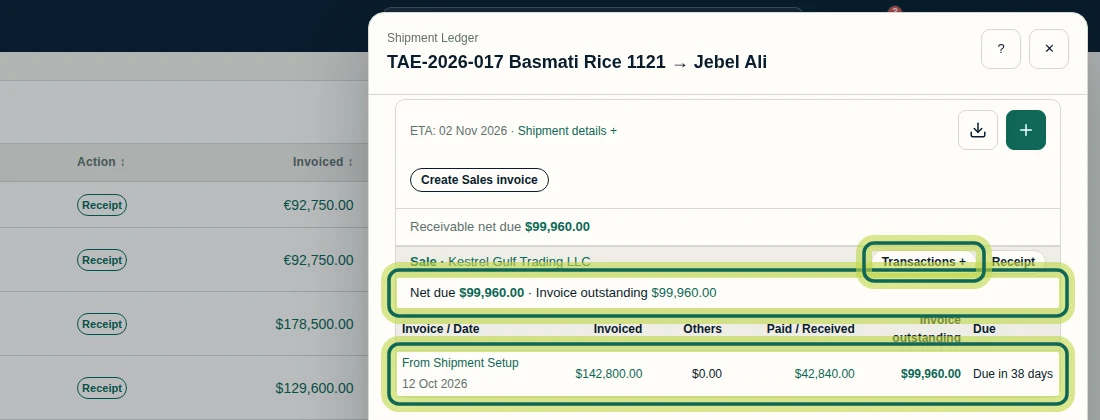
Check the refreshed Shipment Ledger, or reopen it by selecting the shipment name in Receivables. For this example, Invoiced remains 142,800.00 US dollars, Paid / Received is 42,840.00 US dollars, and Invoice outstanding and Net due are 99,960.00 US dollars, all in US dollars. The Receivables row also shows the updated Paid / Received and Net due amounts. Select Transactions + beside the Sale to inspect its history.
Step 6 Confirm the receipt allocation
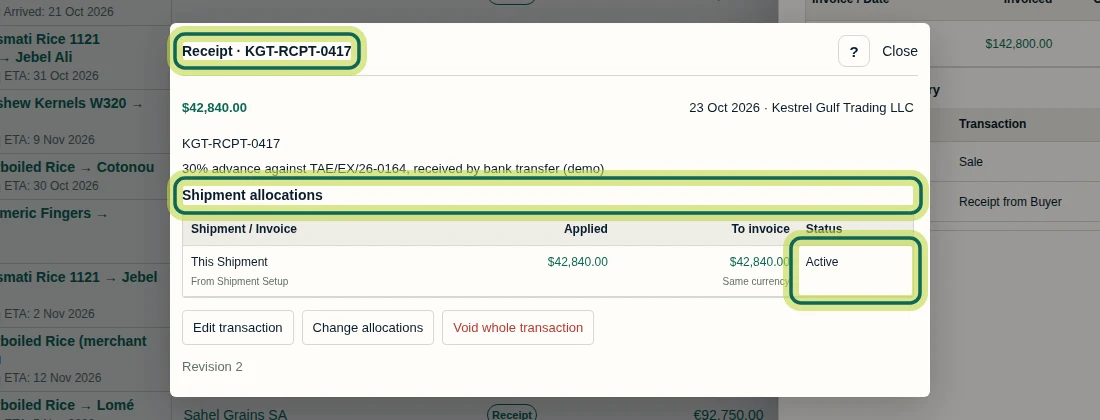
In Transaction history, find Receipt from Buyer dated 23 Oct 2026 and select reference KGT-RCPT-0417. In the receipt detail, check the date, buyer, amount and Shipment allocations. This example shows Applied and To invoice as 42,840.00 US dollars in US dollars, with status Active and Same currency. The part-payment is recorded against this invoice, leaving 99,960.00 US dollars outstanding. For a receipt covering more than one shipment, continue with How to Allocate Payments Across Multiple Shipments.
Step 7
Expected result
A receipt of 42,840 US dollars is recorded and actively allocated to the selected invoice. Paid / Received becomes 42,840 US dollars; Invoice outstanding and Net due become 99,960 US dollars, while Invoiced stays 142,800 US dollars. The receipt appears in Transaction history under KGT-RCPT-0417.
Common issues
- Receipt is not available on the Sale.
- Ask your Company administrator to check your Finance permissions. View-only access does not show Receipt or Record transaction, and the Shipment Admin preset alone does not include Finance manage. Ordinary outside collaborators cannot use this internal shipment recording path.
- The form still shows the full invoice amount for a part-payment.
- Change both Amount and Apply (US dollars) to the intended part-payment, then select Preview. For this example, both are 42840; check Applied is 42,840 US dollars, Unallocated is zero US dollars and Remaining is 99,960 US dollars before recording.
- Record transaction is disabled before Preview.
- Complete the receipt details and invoice allocation, then select Preview and check the totals. In the recorded flow, Record transaction becomes enabled after Preview.
Next tutorial
Was this helpful?
If something did not work as described, tell us and we will help.