How to Use the Shipment Ledger
Check a shipment’s sale and purchase balances, inspect transaction history and receipt allocations, and continue to the Party Ledger.
- ForInternal Company users who review shipment receivables, payables, and Finance records
- Task timeAbout 3 min
- Video2:33
- Last checked2026-10-23
Overview
Open a shipment’s full ledger from Payments, read its receivable and payable positions, and inspect the records behind them. Learn to distinguish active allocations from retained history, find export choices, and open the linked Party Ledger.
What you'll learn
- Open the full Shipment Ledger and expand saved shipment details
- Read sale and purchase balances without mixing currencies
- Inspect transaction history, receipt allocations, and retained voided entries
- Find export choices and continue to the Party Ledger
Before you begin
- Company Finance viewing access for the Payments dashboard and Party Ledger shown here; internal shipment Finance viewing access alone opens only that shipment's ledger. Changing records requires the corresponding write access.
- A shipment visible in Payments, with existing Finance records to inspect. Understanding the Payments Dashboard
Step-by-step guide
Open the full Shipment Ledger
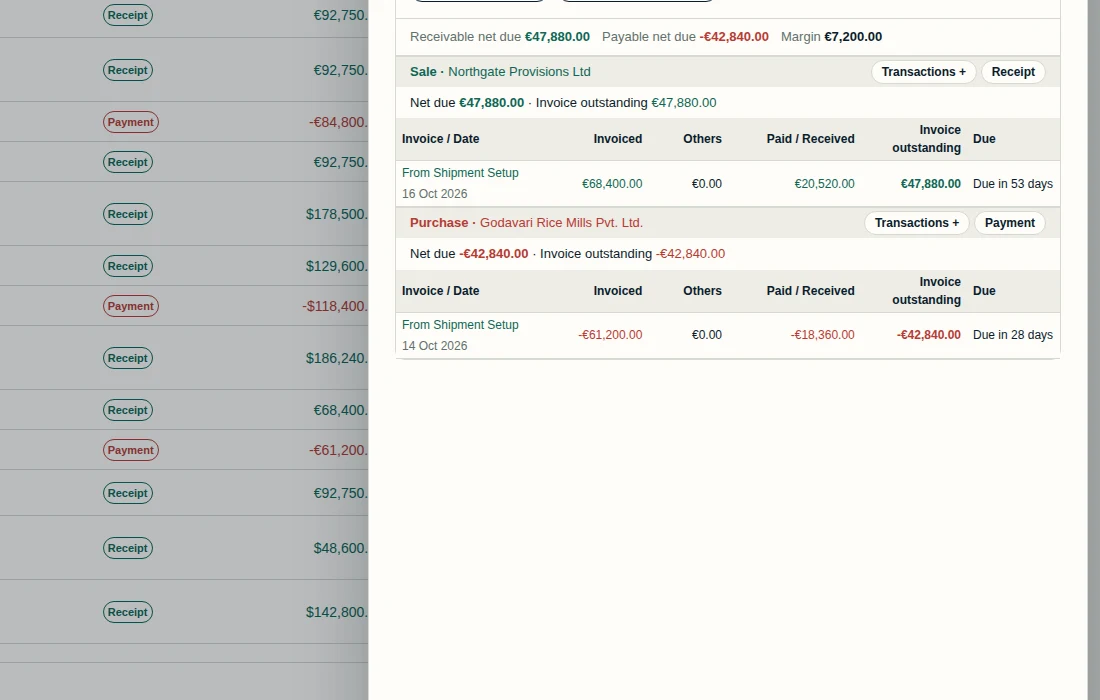
In Payments, select the shipment name to open its Shipment Ledger drawer. Check the shipment title, then select Open full ledger at the bottom. This route starts on the Company Payments dashboard and ends in the Party Ledger, so it needs Company Finance viewing access; internal shipment Finance viewing access alone opens only that shipment's ledger. Opening the ledger lets you review its existing records without changing them.
Step 1 Check the shipment details
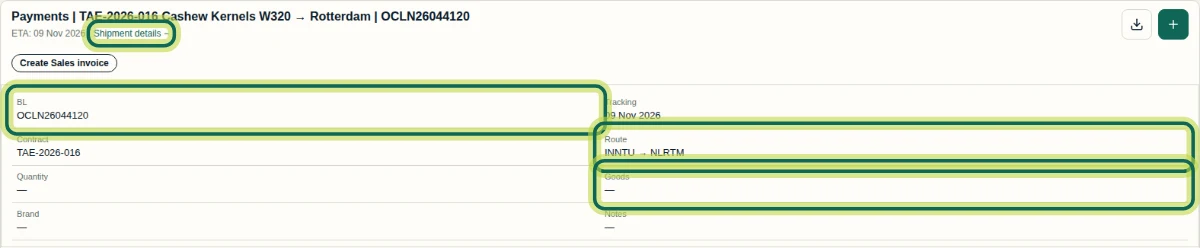
On the full ledger, select Shipment details + below the title to expand BL, Tracking, Contract, Route, Quantity, Goods, Brand, and Notes. Select Shipment details − to collapse them. This screenshot uses a separate shipment, TAE-2026-016 Cashew Kernels W320 to Rotterdam, to show saved details: BL is OCLN26044120 and Route is INNTU → NLRTM. Goods still shows a dash because it has not been filled in Setup; the shipment name does not populate that field. Missing details do not remove existing Finance records. Return to the shipment you want to review before comparing balances.
Step 2 Read the sale and purchase balances
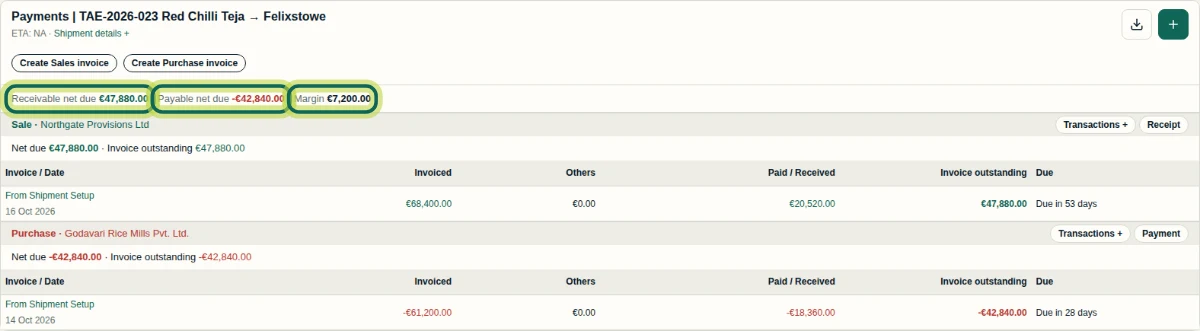
Check the shipment title, then read Receivable net due, Payable net due, and Margin where shown. In Red Chilli Teja, these are 47,880.00 euros, -42,840.00 euros, and 7,200.00 euros. The Sale to Northgate Provisions Ltd shows Invoiced 68,400.00 euros, Paid / Received 20,520.00 euros, and Invoice outstanding 47,880.00 euros, due in 53 days. The Purchase from Godavari Rice Mills Pvt. Ltd. shows -61,200.00 euros invoiced, -18,360.00 euros paid, and -42,840.00 euros outstanding, due in 28 days. Minus signs identify the payable direction here. Paid / Received reflects allocated amounts. Net due and Invoice outstanding match in this example, but a shipment advance can make them differ. Keep currencies separate and treat Margin as the displayed shipment figure, not a complete profit statement.
Step 3 Expand each section’s transaction history
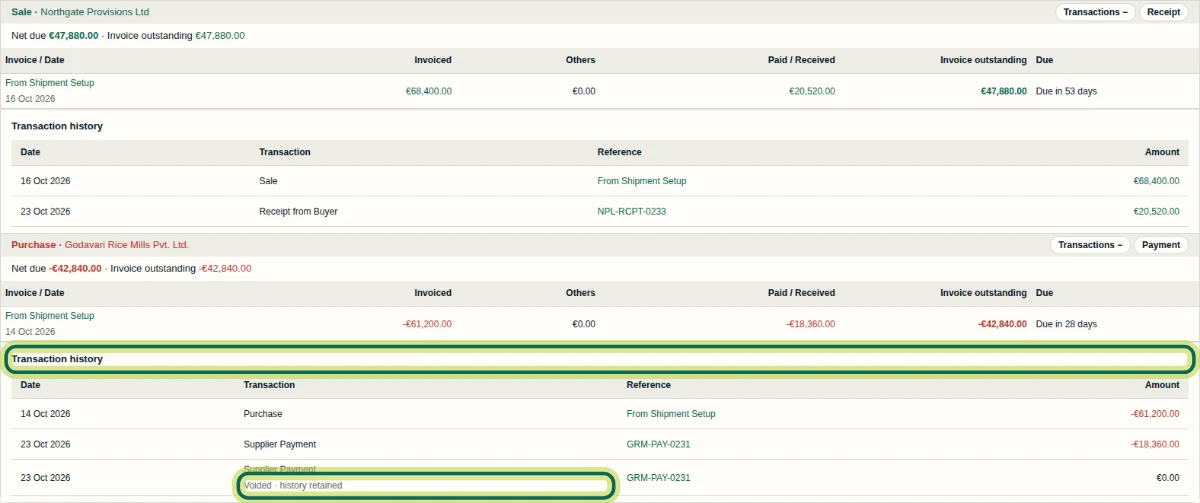
Select Transactions + beside Sale or Purchase to expand that section’s Transaction history. Read Date, Transaction, Reference, and Amount together. The sale history includes Receipt from Buyer, reference NPL-RCPT-0233. The purchase history includes an active Supplier Payment of -18,360.00 euros and a separate entry with the same reference marked Voided · history retained, showing 0.00 euros. The retained entry is history, not another active payment. Select Transactions − to collapse a section. Shipment history has no Running Balance, Transaction View, or period/filter controls; use Party Ledger for the broader review.
Step 4 Check the receipt’s active allocation
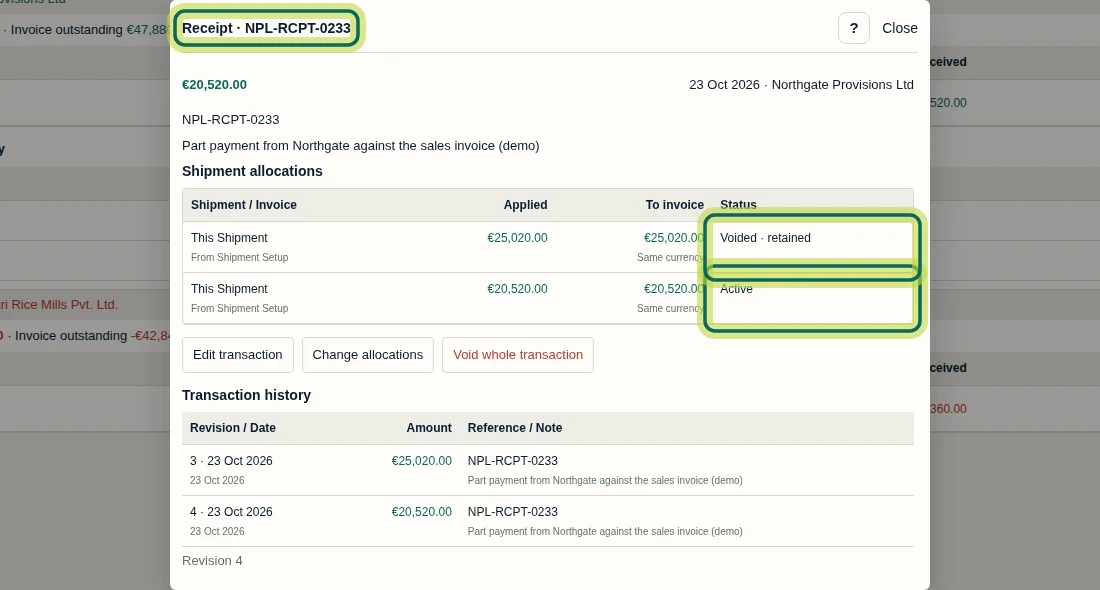
In the Sale section, expand Transactions + and select receipt reference NPL-RCPT-0233. The receipt detail shows 20,520.00 euros. Under Shipment allocations, the 20,520.00 euros row is Active, while the earlier 25,020.00 euros row is Voided · retained. Use the status to identify the current allocation; do not add the retained amount to it. Transaction history below preserves revisions 3 and 4. This is a receipt record in Shiplete, not evidence that Shiplete moved money or connected to a bank. Select Close to return without editing.
Step 5 Choose an export or print option
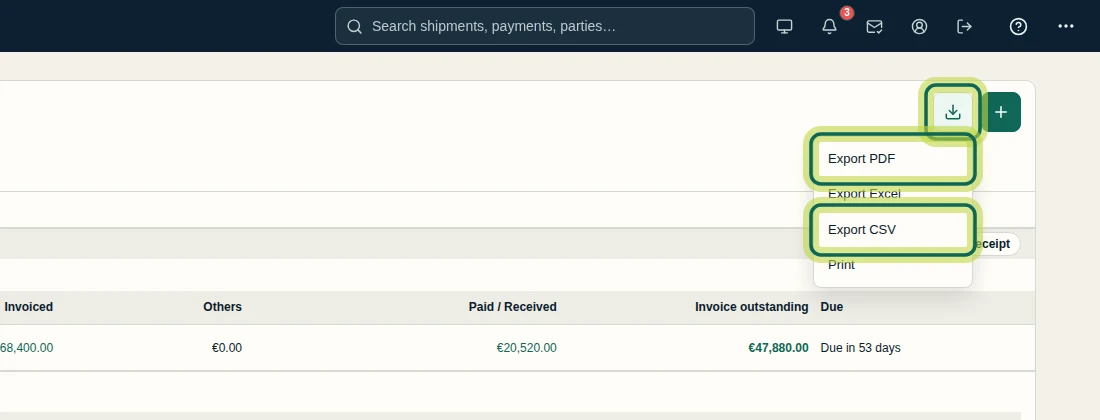
On the full Shipment Ledger, select the download icon at the top right. The menu offers Export PDF, Export Excel, Export CSV, and Print. Select the option you need. This recording shows the menu only; it does not show a completed export or printout, or verify spreadsheet cell types.
Step 6 Continue to the Party Ledger
In the Shipment Ledger, select the Party name in the Sale or Purchase heading. Selecting Northgate Provisions Ltd opens its Party Ledger, shown here with Shipment View selected and the period set to Last 30 days. Check the Party name and period before interpreting the results, and read each currency summary separately. You have now checked the shipment’s balances, transaction history, and active receipt allocation. Continue with the Party Ledger tutorial to review the Party’s wider position and its available views and filters.

Step 7
Expected result
You can identify the shipment’s sale and purchase balances, inspect its active receipt allocation and retained history, find export choices, and open the Party Ledger.
Common issues
- Shipment details show dashes even though the shipment has Finance records.
- Review the saved details in Shipment Setup. A commodity in the shipment name does not fill the Goods field. Missing setup details do not erase existing Finance records.
- A receipt detail or transaction history contains retained entries alongside the current record.
- Read the status and amount together. In the recorded receipt, use the allocation marked Active rather than adding the Voided · retained allocation. The separate supplier-payment row marked Voided · history retained shows 0.00 euros.
- Running Balance, Transaction View, or period/filter controls are missing from the Shipment Ledger.
- The Shipment Ledger does not provide those controls. Select the Party name to open its Party Ledger and continue with the Party Ledger tutorial.
Next tutorial
Was this helpful?
If something did not work as described, tell us and we will help.