Sign Up and Verify Your Email
Create your personal Shiplete account, confirm your email with a six-digit code and sign in.
- ForAnyone new to Shiplete
- Task timeAbout 2 min
- Video1:34
- Last checked2026-10-22
Overview
Your Shiplete account belongs to you. Signing up does not create a Company or give access to any shipment: after you sign in you either create a Company or accept an invitation from one.
What you'll learn
- Where to start creating your account
- What to enter on the Create your account page
- How to confirm your email with the six-digit code
- What you see the first time you sign in
Before you begin
- An email address you can open now to read the code
Step-by-step guide
Open the sign-up page
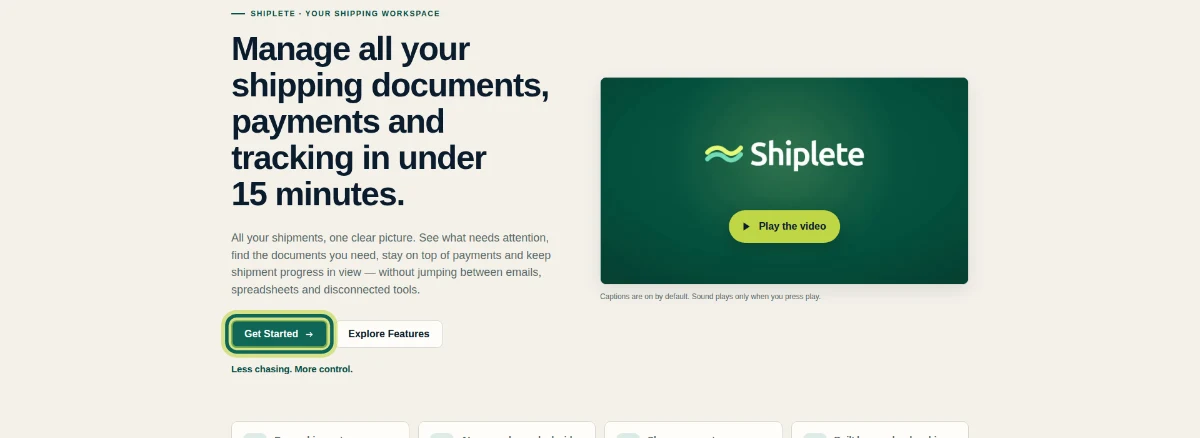
Go to shiplete.com and select Get Started. If you are on the sign-in page, select Create account instead.
Step 1 Enter your name
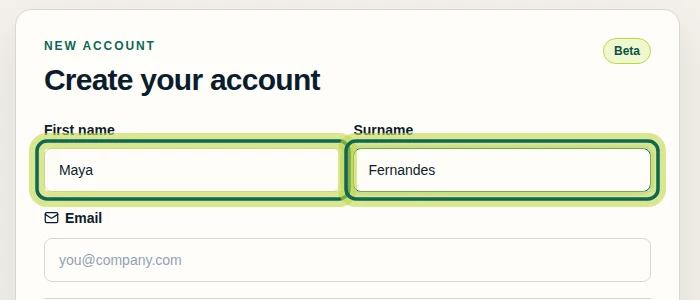
On Create your account, enter your First name and Surname.
Step 2 Enter your email address
Enter an Email address you can open now — your confirmation code is sent there.

Step 3 Choose and confirm a password
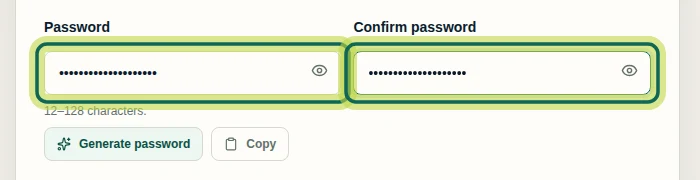
Choose a Password of 12 to 128 characters and type it again in Confirm password. You can also select Generate password and Copy it somewhere safe.
Step 4 Create your account
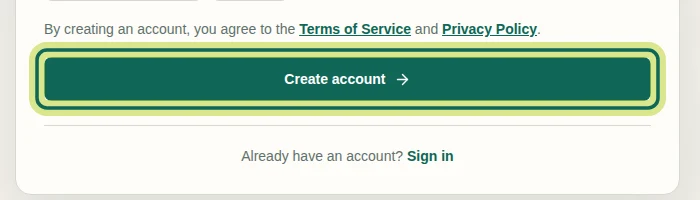
Creating an account means you agree to the Terms of Service and the Privacy Policy. Select Create account.
Step 5 Find the code in your email
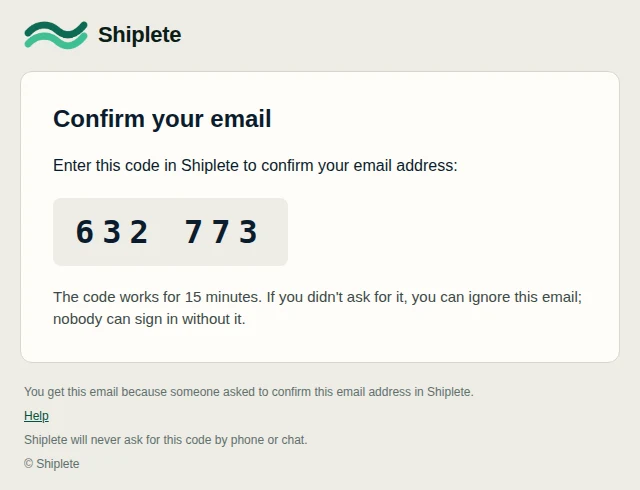
Shiplete emails you a six-digit code with the subject Your Shiplete code. The code works for 15 minutes. Shiplete never asks for this code by phone or chat.
Step 6 Enter the code and verify
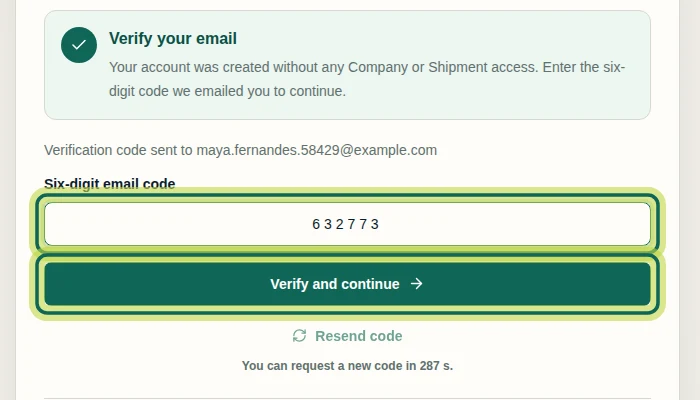
Type the code into Six-digit email code and select Verify and continue. If the email has not arrived, check your spam folder, or select Resend code when the timer allows.
Step 7 Use the link in the email instead
You can open the confirmation link in the email instead of entering the code. Opening the link does not confirm your email: select Confirm email on the page. If you open it in the same browser you used to sign up, that click confirms your email; in another browser or device, you must also set a password. The link stops working when the 15-minute code window ends or after six wrong codes. Emails notifying you of a sign-up attempt for an existing account do not contain a confirmation link.
Step 8 Sign in
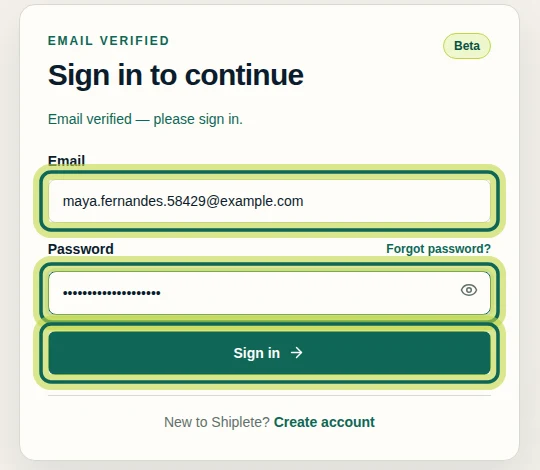
You see Email verified — please sign in. Enter your Email and Password and select Sign in.
Step 9 Your first screen
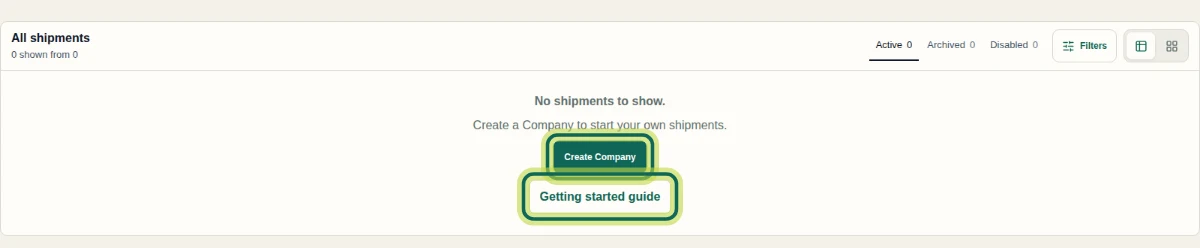
Your Shipments page is empty for now. Select Create Company to start your own shipments, or — if a colleague invited you — accept their invitation instead. Getting started guide opens in-app help.
Step 10
Expected result
Your account is created and your email address is confirmed. You see Email verified — please sign in; enter your email and password to sign in.
Common issues
- The code email has not arrived.
- Check your spam or junk folder. After the timer on the verification step ends, select Resend code.
- The code does not work.
- Codes expire after 15 minutes. Request a new code with Resend code and use the newest email.
- My password is not accepted.
- Use 12 to 128 characters and make sure Confirm password matches exactly. Generate password creates one that fits.
- I see no shipments after signing in.
- That is expected for a new account. Create a Company, or accept an invitation from a colleague to see their shipments.
Choose what to do next
Was this helpful?
If something did not work as described, tell us and we will help.