How to Review Shipment Tracking and Progress History
Check the current ETA, read saved manual tracking updates, and compare the separate Activity entries when your access allows.
- ForShipment users who need to review saved ETA and arrival updates
- Task timeAbout 3 min
- Video2:09
- Last checked2026-10-23
Overview
Open Track Shipment to compare the current tracking result with saved manual updates, newest first. Read each event’s value, recorded date and available updater name. The recorded example follows three ETA changes; the separate Activity page adds old and new values and update times for these changes.
What you'll learn
- Find the current ETA and open Tracking history
- Read an event’s status, ETA or arrival value, recorded date and available updater name
- Compare earlier saved ETA values in newest-first order
- Recognize the manual tracking and latest-50-update limits
- Compare the separate Activity entries when your audit access allows
Before you begin
- Access to view the shipment’s tracking; tracking-update permission is not needed just to read history
- A shipment with saved manual tracking changes to compare How to Update Shipment Status, ETA and Progress
- The applicable audit permission for the optional Activity comparison
Step-by-step guide
Open shipment tracking
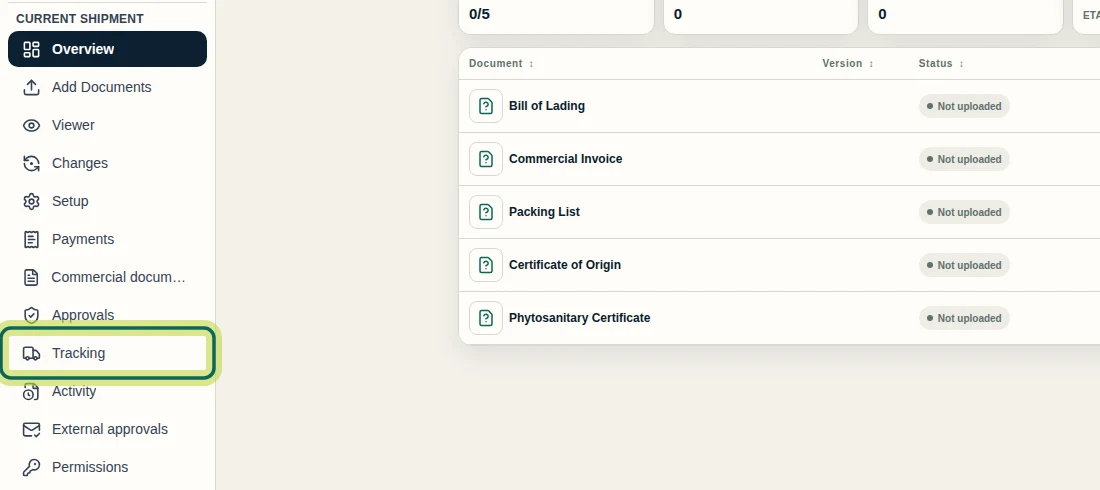
Open the shipment and select Tracking under Current shipment. You need access to view the shipment’s tracking; permission to update tracking is not required just to read its history.
Step 1 Check the current ETA
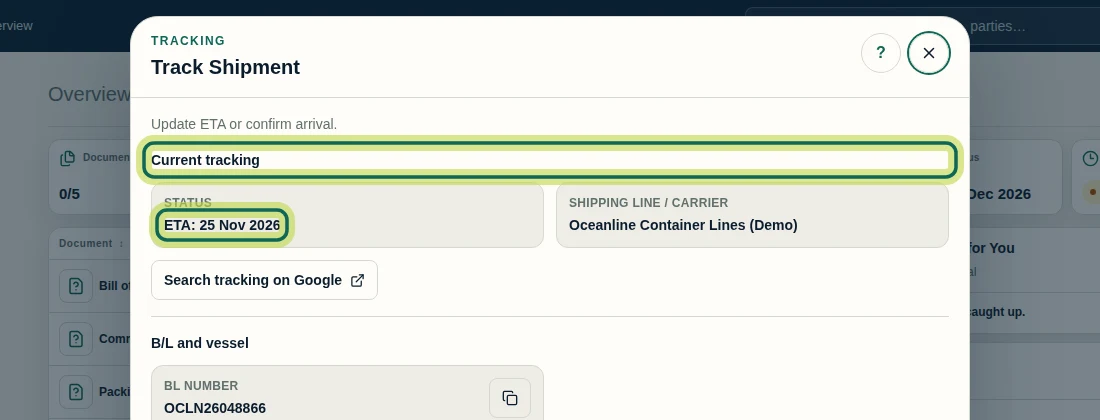
In Track Shipment, read Current tracking → STATUS. This is the current result to compare with the saved history. The example shows ETA: 25 Nov 2026.
Step 2 Find the newest saved update
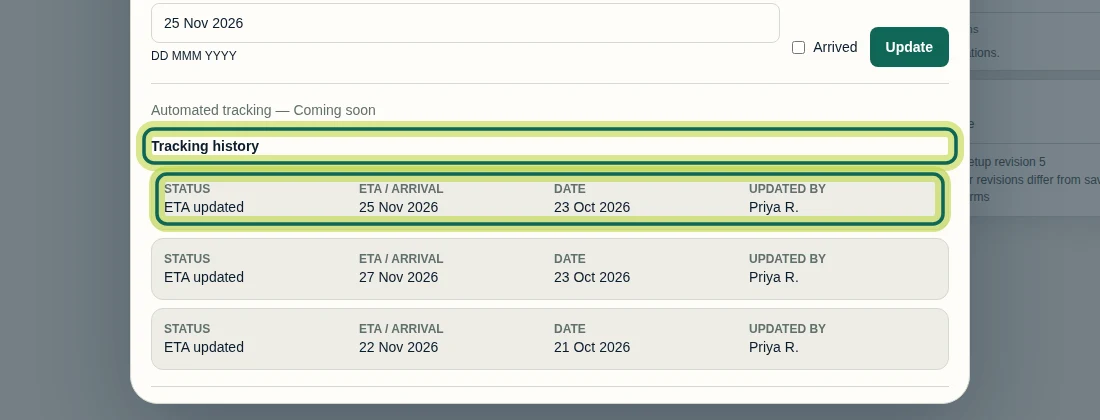
Scroll within Track Shipment to Tracking history. The first row is the newest saved event; in this example, ETA updated records 25 Nov 2026. The dialog shows at most the latest 50 tracking updates. It has no Load more control, so do not treat this list as a complete shipment history.
Step 3 Read the date and updater correctly
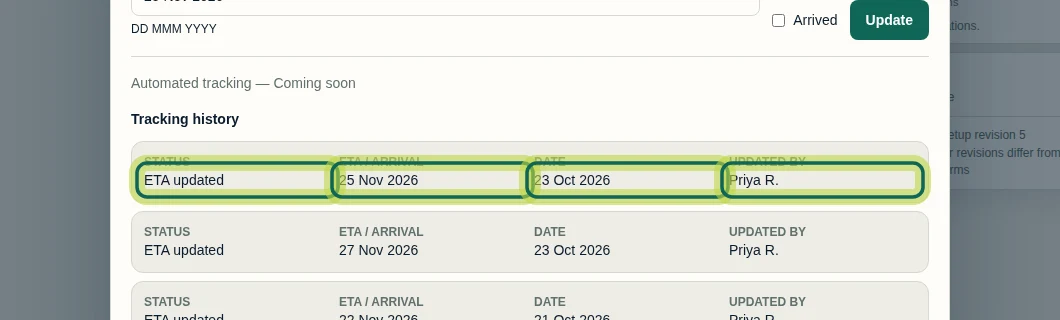
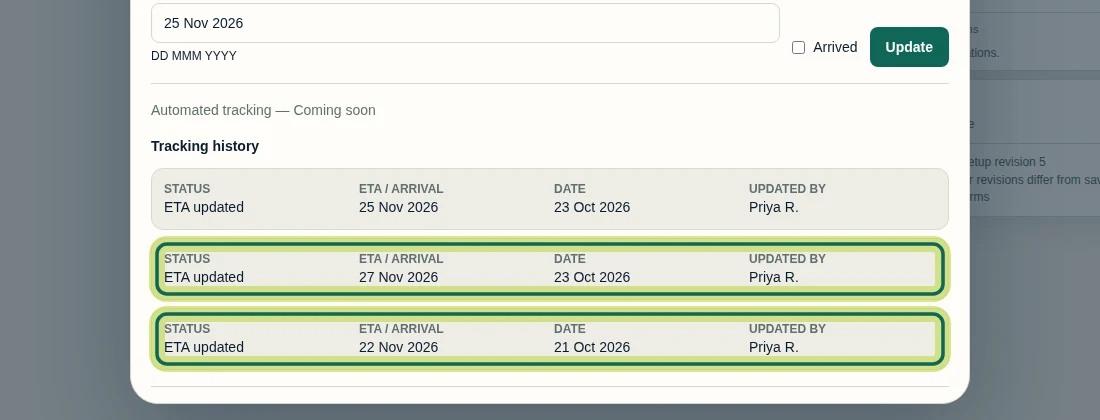
Read each Tracking history row across: STATUS describes the saved event, ETA / ARRIVAL gives its value, DATE shows when it was recorded, and UPDATED BY identifies the updater when a name is available. Here, Priya R. recorded the 25 Nov 2026 ETA on 23 Oct 2026. The history shows a calendar date, not a time of day; dates follow Company formatting. An updater name may be unavailable.
Step 4 Compare earlier ETA values
Read the rows below the newest Tracking history entry to compare earlier saved values. Here, the older ETA values are 27 Nov 2026 and 22 Nov 2026. Reading the three records from oldest to newest gives 22 Nov, then 27 Nov, then 25 Nov 2026. These are changes to the expected arrival date, not separate transport milestones.
Step 5 Recognize the manual tracking limit
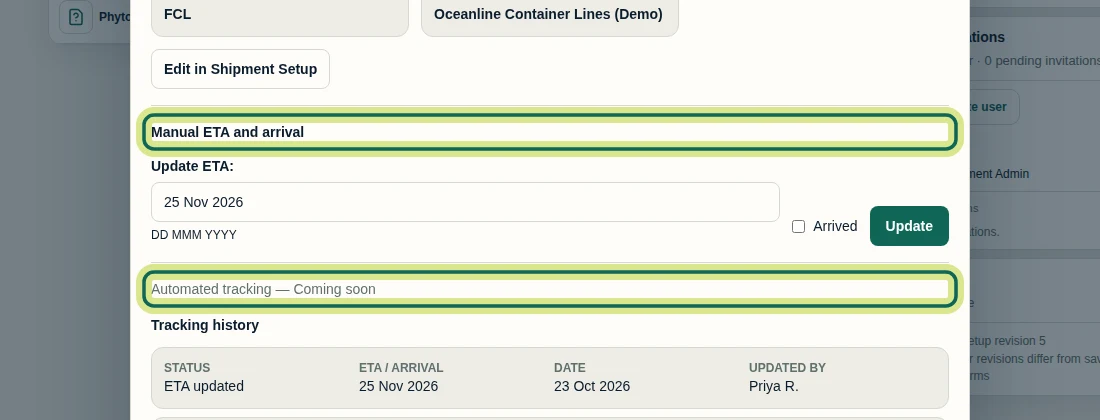
Check Manual ETA and arrival and the notice Automated tracking — Coming soon in Track Shipment. The history records saved manual tracking changes. It is not an automated carrier event feed, and this dialog does not provide an upcoming-milestone list.
Step 6 Compare the separate Activity entries
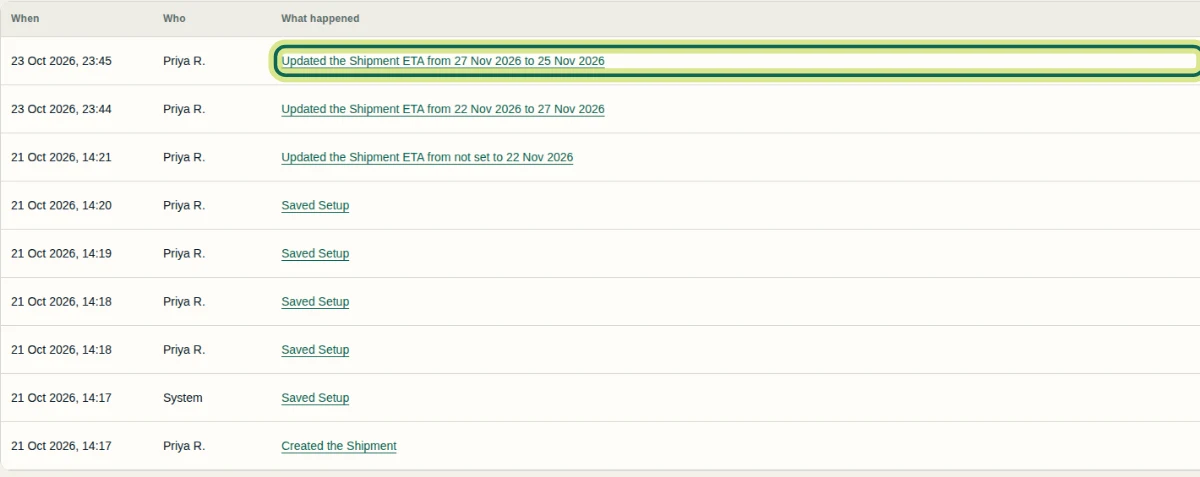
If your access includes the applicable audit permission, close Track Shipment and select Activity in the shipment menu. This separate page shows the recorded ETA changes from 27 Nov to 25 Nov 2026 and from 22 Nov to 27 Nov 2026. Its When column includes times in the local time of your device. Access to Tracking history does not guarantee access to Activity. For these ETA changes, use the full Activity page rather than the Overview Activity card, which did not show them in this recording.
Step 7
Expected result
You can identify the current ETA, compare the visible saved tracking updates and distinguish their recorded dates from their ETA values. You know when to use the separate Activity page for the recorded old and new dates.
Next tutorial
Was this helpful?
If something did not work as described, tell us and we will help.