How to Update Shipment Status, ETA and Progress
Update a shipment's manual ETA, verify the saved history and check an arrival-linked payment date after it refreshes.
- ForPeople responsible for maintaining shipment ETAs who have permission to update tracking
- Task timeAbout 3 min
- Video2:25
- Last checked2026-10-23
Overview
Change the ETA in Track Shipment, confirm the saved date in Tracking history and check Tracking Status on Overview. The recorded example also shows an arrival-linked payment date moving after a short wait. Operational Status remains Pending upload.
What you'll learn
- Open Track Shipment and check the current ETA
- Save a new ETA using the displayed date format
- Verify the updated date and newest Tracking history entry
- Distinguish Tracking Status from Operational Status
- Check an arrival-linked payment rule after its due date refreshes
Before you begin
- Access to an editable shipment and permission to update its tracking
- Know where to find the shipment's Overview and menu Understand Shipment Overview
- An existing arrival-linked payment rule and permission to view Finance for this shipment, if you want to follow the payment-date comparison
Step-by-step guide
Open shipment tracking
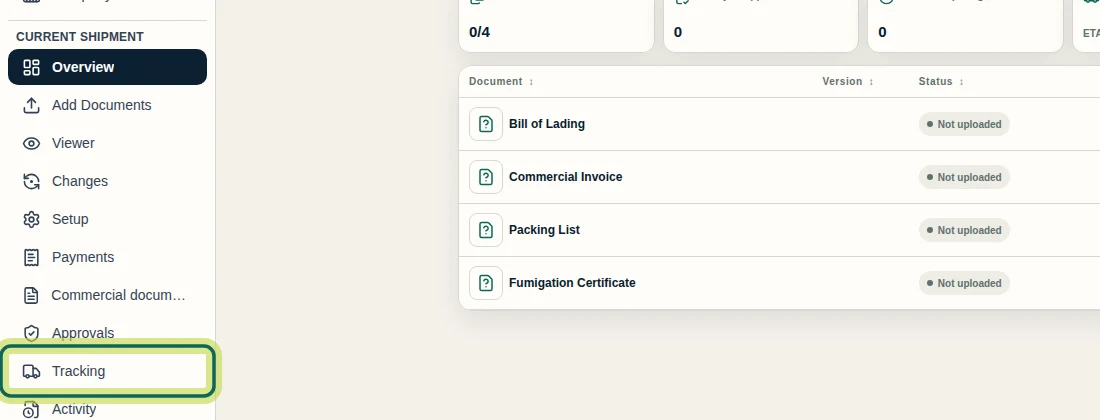
Open the shipment, then select Tracking under Current shipment in the left menu. You need permission to update tracking on an editable shipment. If the dialog says Tracking updates are read-only for your current access., ask someone who manages shipment permissions for update access. Archived shipments cannot be updated.
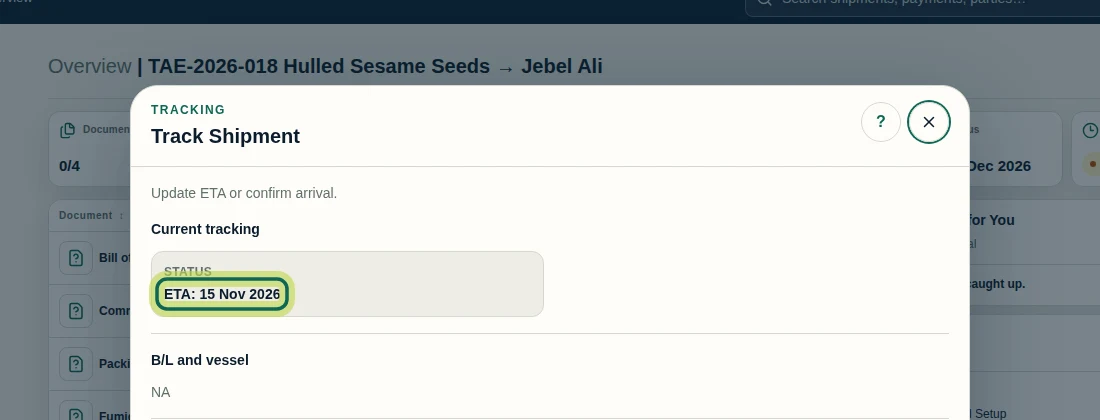
Step 1 Check the saved ETA
In Track Shipment, check Current tracking before making a change. This example shows ETA: 15 Nov 2026. Confirm that you have opened the correct shipment and are replacing the intended date.
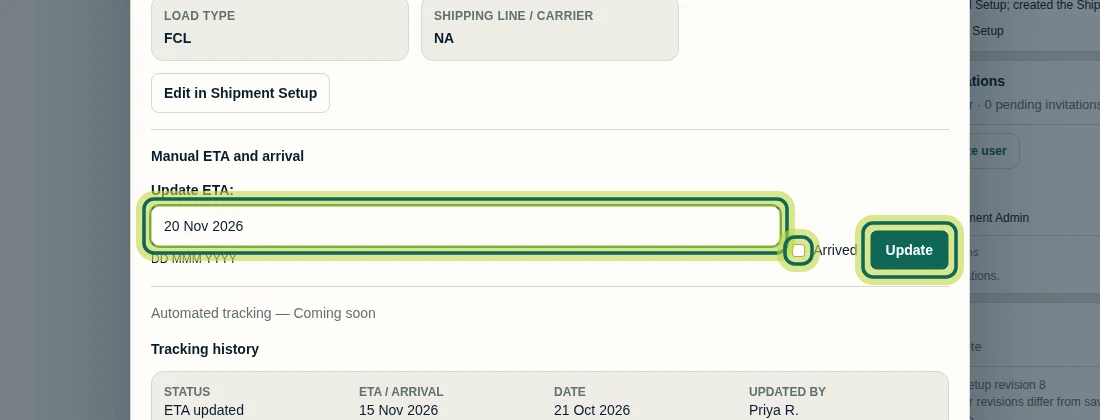
Step 2 Enter and save the new ETA
Under Manual ETA and arrival, replace Update ETA: with the new date using the format hint beneath the field. Here, DD MMM YYYY means entering 20 Nov 2026. Leave Arrived unchecked when changing only the estimate, then select Update. Arrival confirmation is a separate action and is not demonstrated here; this dialog has no editable actual-arrival-date picker.
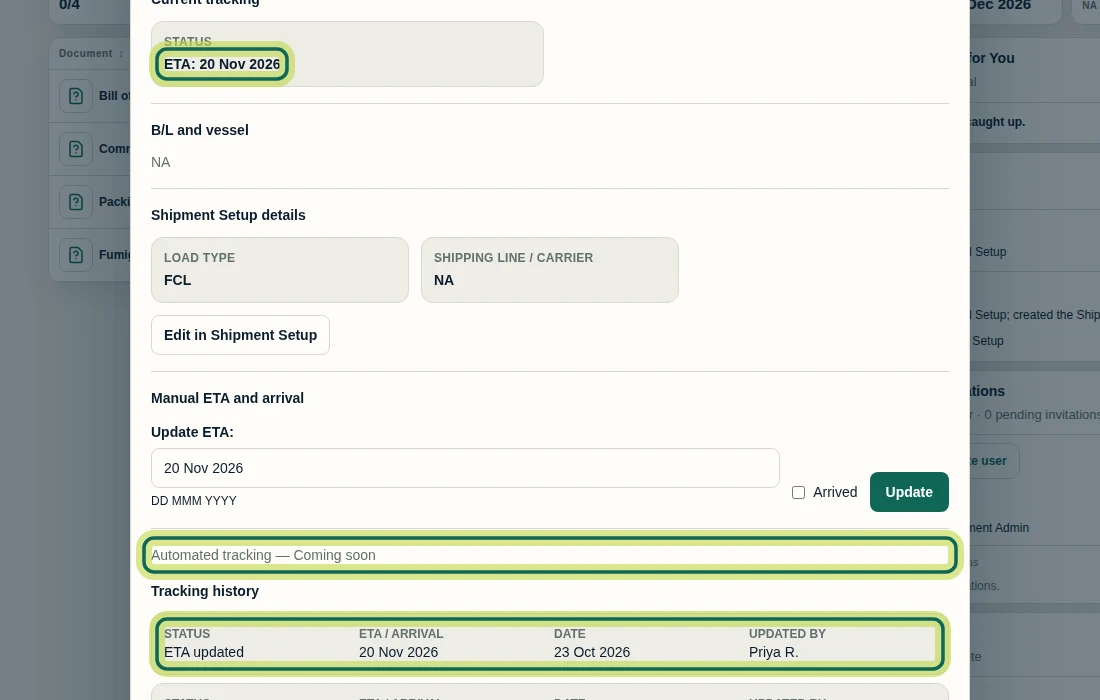
Step 3 Verify the saved date and history entry
Wait for ETA updated., then check that Current tracking shows the new date. In Tracking history, verify the newest ETA updated entry, its ETA / ARRIVAL, DATE and UPDATED BY values. This example records 20 Nov 2026, saved on 23 Oct 2026 by Priya R. The history shows the latest 50 manual updates. Automated tracking — Coming soon means this view does not provide live carrier tracking.
Step 4 Check Tracking Status on Overview
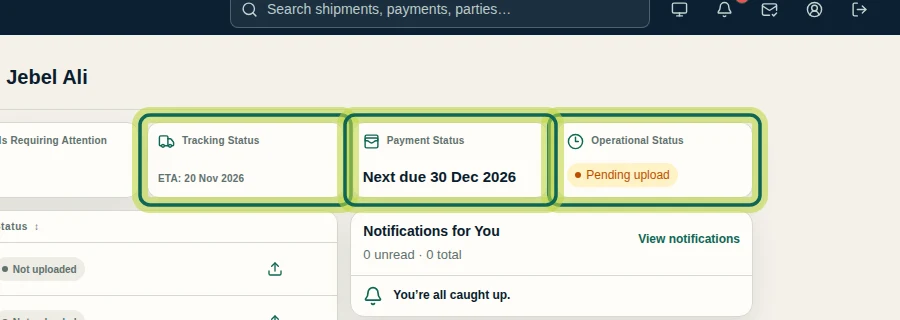
Close Track Shipment with the × in the top-right corner. On Overview, check that Tracking Status shows ETA: 20 Nov 2026. Operational Status still shows Pending upload in this example. Operational Status comes from Setup, required uploads, document processing and review readiness; changing the ETA does not set it. Payment Status may initially retain its previous date while the payment dates refresh.
Step 5 Allow time for the payment date to refresh
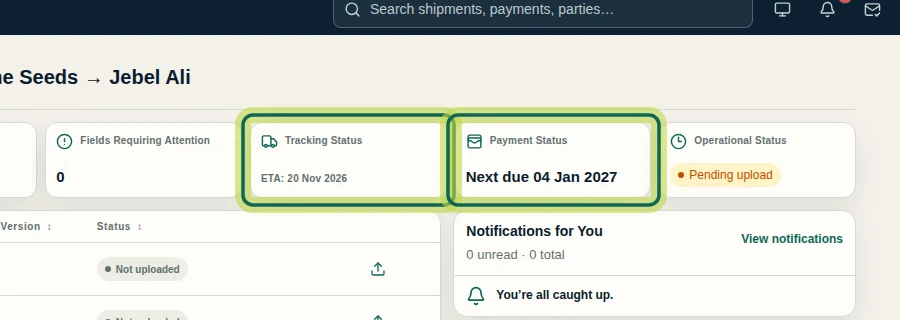
If the shipment has an arrival-linked payment rule, check Payment Status again after a moment and refresh Overview if needed. In this recording, Next due changed from 30 Dec 2026 to 04 Jan 2027 after a short wait and reloads. The payment-date refresh can take time; an ETA change does not move every payment's due date.
Step 6 Confirm the payment's due-date rule
Select Payments in the shipment menu. Check the header's ETA and the payment's Due column. This example shows ETA: 20 Nov 2026 and 45 days after arrival (ETA), explaining the move to 04 Jan 2027. Fixed-date rules do not move with the ETA. Next, return to Tracking and review Tracking history to compare saved dates and who updated them.

Step 7
Expected result
The new ETA appears in Current tracking and Overview, with a matching manual update in Tracking history. An arrival-linked payment due date can move after its refresh completes; Operational Status is determined separately.
Next tutorial
Was this helpful?
If something did not work as described, tell us and we will help.