How to Use the Party Ledger
Check a party's current balances, inspect shipment history, filter transactions, and understand running balances.
- ForCompany members who review customer or supplier Finance activity across shipments
- Task timeAbout 3 min
- Video2:46
- Last checked2026-10-23
Overview
Open a party's ledger from Payments to compare current balances by currency with shipment history and recorded transactions. Learn how periods, sorting, and filters affect the display, and where to find export options.
What you'll learn
- Open a Party Ledger and read its current balances by currency
- Compare shipment amounts and expand Transaction history
- Apply a custom period while recognizing retained unsettled shipments
- Distinguish whole transaction amounts from Running Balance and shipment allocations
- Sort dates, filter transaction types, and find export formats
Before you begin
- Company Finance view access; a Finance grant for one shipment alone does not grant the party-wide ledger
- A party with Finance records visible in Payments Understanding the Payments Dashboard
Step-by-step guide
Open the party's ledger
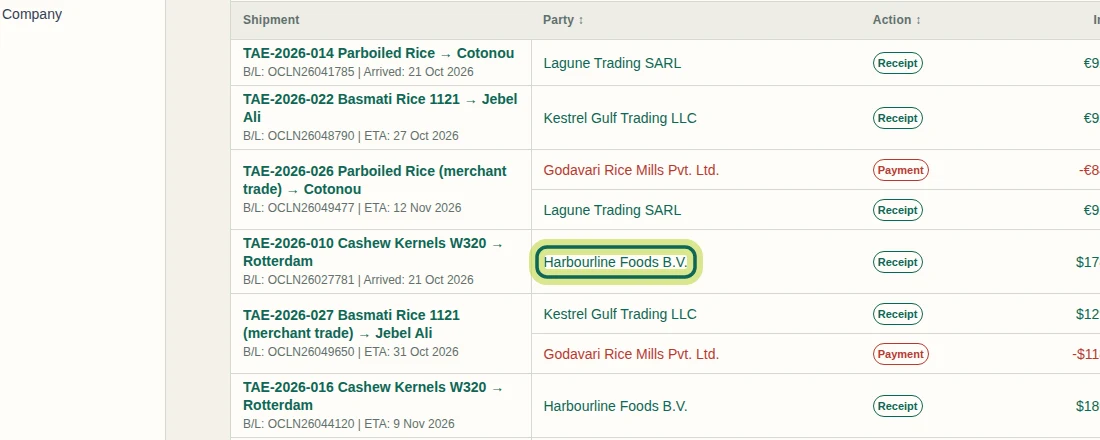
Open Payments and select the party's name in the Party column, such as Harbourline Foods B.V. This opens that party's ledger across eligible shipments. You need Company Finance view access; access to Finance for one shipment alone does not grant access to the party-wide ledger.
Step 1 Check the party and current balances
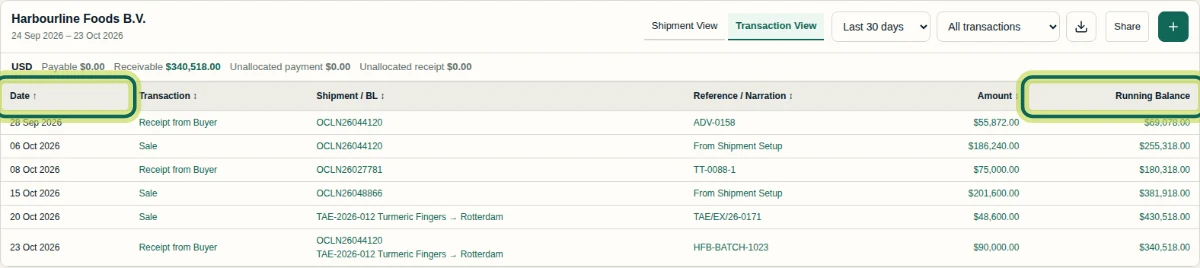
Confirm the party name at the top, then read Payable, Receivable, Unallocated payment, and Unallocated receipt separately for each currency. This example shows a Receivable of 340,518.00 US dollars and zero US dollars in the other three balances. These are current balances, not totals limited to the selected period. Shipment-linked advances are excluded from the party-level unallocated totals. Keep different currencies separate; these ledger figures are not bank-account balances.

Step 2 Inspect a shipment and its history
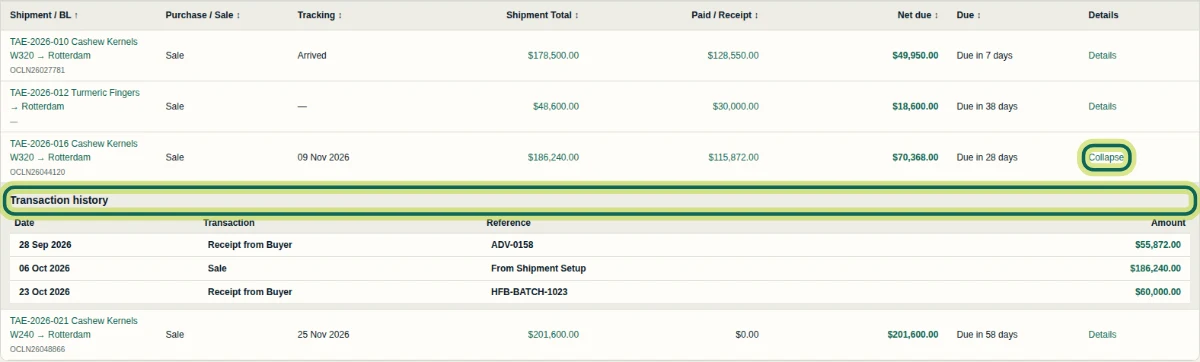
Select Shipment View to compare Shipment Total, Paid / Receipt, Net due, Tracking, and Due for each shipment. Select Details on the shipment you want to inspect. Its Transaction history expands underneath, showing dates, transactions, references, and amounts. For TAE-2026-016, the 23 October receipt contributes 60,000.00 US dollars to this shipment. Select Collapse to close the history. A recorded receipt or payment is a record in Shiplete; recording it does not move money.
Step 3 Apply a custom period
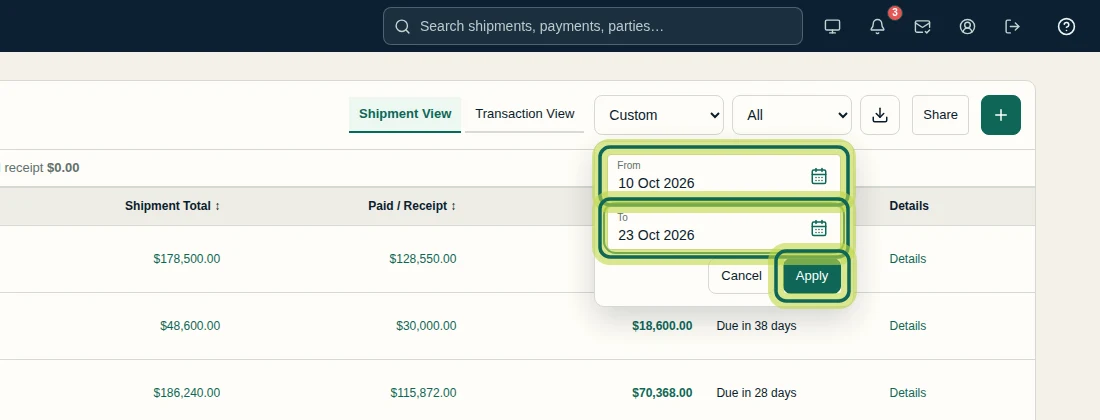
Open the period selector, initially Last 30 days, and choose Custom. Enter valid From and To dates, with From on or before To, then select Apply. The example uses 10 October 2026 through 23 October 2026. Check the updated date range beneath the party name. Shipment View retains unsettled shipments even when they have no transaction in the period, so all four remain in this example. The summary balances remain current. Use Cancel to leave the date selection without applying it.
Step 4 Read transactions and sort by date
Select Transaction View. For the view shown here, select Last 30 days and All transactions. Read Transaction, Shipment / BL, and Reference / Narration to identify each record. Amount shows the whole payment or receipt once, including any unapplied portion: HFB-BATCH-1023 appears once for 90,000.00 US dollars, although one shipment's history showed only its 60,000.00 US dollar share. Running Balance is the party balance after each transaction and includes pre-period movements. Select Date to switch between newest first and oldest first; each row keeps its balance. Running Balance itself is not sortable.
Step 5 Focus on a transaction type
In Transaction View, open the transaction filter beside the period selector and choose Receipt from Buyer. This example shows three matching receipts. The available transaction types depend on the party's records. Filtering hides other transaction types without recalculating each row's Running Balance from only the displayed receipts. Choose All transactions to restore the full list for the selected period.

Step 6 Choose an export format
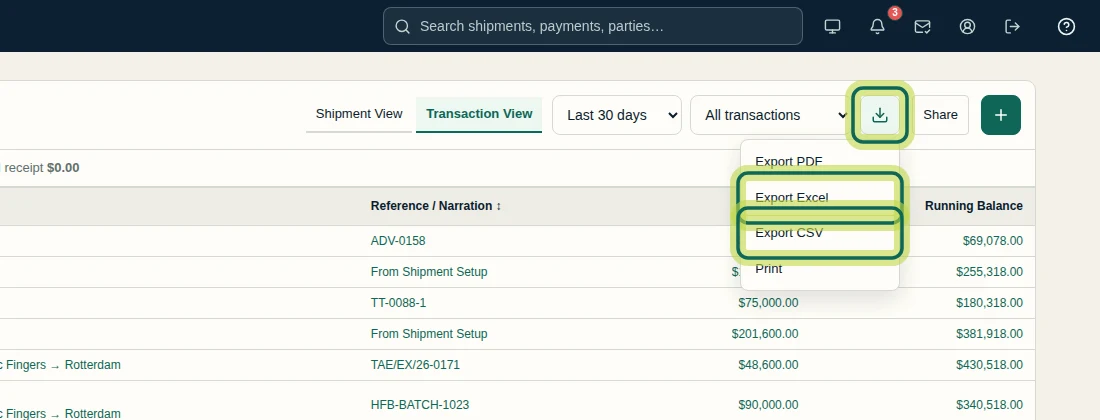
Set the view, period, and transaction filter you want to inspect; the example returns to All transactions. Select the Export icon and choose Export PDF, Export Excel, Export CSV, or Print. The recording shows the available choices; it does not show a completed download or printed output. You can now compare current balances with shipment history and individual transactions. Next, continue with How to Correct Payment Entries and Balances.
Step 7
Expected result
You can distinguish a party's current balances from period activity, inspect shipment history, recognize a receipt shared across shipments, and use date sorting and transaction filters without misreading Running Balance.
Common issues
- A shipment remains visible after selecting a period with no transactions for it.
- Shipment View retains unsettled shipments, including open amounts, advances, or review states. Check Net due and Transaction history; the period does not hide every shipment without activity in those dates.
- Changing the period does not change the summary balances.
- Payable, Receivable, Unallocated payment, and Unallocated receipt show current balances by currency, rather than totals limited to the selected period.
- The displayed transactions do not add up to a row's Running Balance.
- Running Balance includes pre-period movements and remains attached to its transaction after sorting or filtering. Return to All transactions to see all types in the selected period; that period can still omit earlier activity.
Next tutorial
Was this helpful?
If something did not work as described, tell us and we will help.